


Page 61 - CC2017_WD_Look_Inside
P. 61
Stage 4  Managing Multiple Layers

              Your ad file has most of the necessary pieces. If you show all of the layers, however, you’ll still see a
              bunch of stacked images. It’s not yet an actual design, just a pile of images. When you composite
              images into a cohesive design, you almost certainly need to manipulate and transform some of the
              layers to make all the pieces work together.
                 Photoshop includes a number of tools for managing layers, from resizing the layer (as you did for
              the parchment) to rotating and flipping layers, to aligning different layers to each other, to grouping
              individual layers so you can work on multiple images at once.


                  mAnipulAte And ArrAnge lAyers

                1.  With forefathers.psd open, hide the Quill layer and show the
                   Background, Parchment, and Layer 4 layers.

                2.  Rename Layer 4 as Title.

                   Right now the title is too large to fit into the parchment layer, so you need to resize it.

                3.  With the Title layer selected in the Layers panel, choose               Note:
                   Edit>Transform>Scale.                                                    Press Command/
                                                                                            Control-T to display the
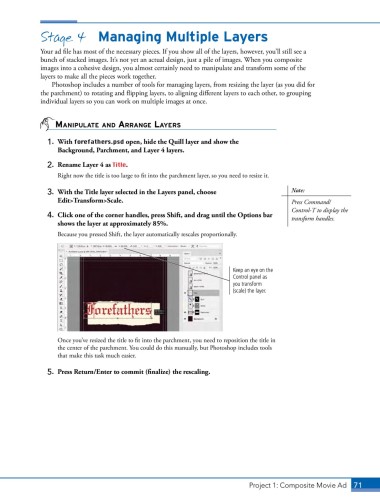
                4.  Click one of the corner handles, press Shift, and drag until the Options bar   transform handles.
                   shows the layer at approximately 85%.
                   Because you pressed Shift, the layer automatically rescales proportionally.


                                                                          Keep an eye on the
                                                                          Control panel as
                                                                          you transform
                                                                          (scale) the layer.


                   Once you’ve resized the title to fit into the parchment, you need to reposition the title in
                   the center of the parchment. You could do this manually, but Photoshop includes tools
                   that make this task much easier.

                5.  Press Return/Enter to commit (finalize) the rescaling.


                                                                               Project 1: Composite Movie Ad    71

