


Page 55 - CC2017_WD_Look_Inside
P. 55
CreAte A veCtor mAsk
              You now have a path that outlines the bottle shape, but the bottle background is still
              in the image. Since you’ve already selected the shape (with the path), you can easily
              remove the background using the path you created in the previous exercises.
                 One option for completing this task is to make a selection based on the path
              (choose Make Selection in the Paths panel Options menu) and simply delete the pixels
              outside the selection. This is a pixel-based option, even though the path is a vector.
              When you make the selection, it will be a rendered version of the original vector path.
                 The second option for isolating an object with a path is to create a vector-based
              mask. This option maintains the vector data as the outside edge of the image; areas of
              the image outside the vector path are hidden but not deleted, so you can later edit the
              path to change whatever part of the image is visible if necessary.

                1.  With forefathers.psd open, make sure the Bottle Outline path is selected
                   in the Paths panel.

                2.  Display the Layers panel and make sure the Bottle layer is selected.

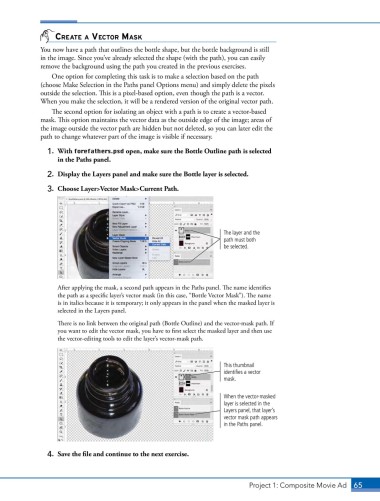
                3.  Choose Layer>Vector Mask>Current Path.


                                                                       The layer and the
                                                                       path must both
                                                                       be selected.


                   After applying the mask, a second path appears in the Paths panel. The name identifies
                   the path as a specific layer’s vector mask (in this case, “Bottle Vector Mask”). The name
                   is in italics because it is temporary; it only appears in the panel when the masked layer is
                   selected in the Layers panel.
                   There is no link between the original path (Bottle Outline) and the vector-mask path. If
                   you want to edit the vector mask, you have to first select the masked layer and then use
                   the vector-editing tools to edit the layer’s vector-mask path.


                                                                       This thumbnail
                                                                       identifies a vector
                                                                       mask.


                                                                       When the vector-masked
                                                                       layer is selected in the
                                                                       Layers panel, that layer’s
                                                                       vector mask path appears
                                                                       in the Paths panel.


                4.  Save the file and continue to the next exercise.


                                                                               Project 1: Composite Movie Ad    65

