


Page 60 - CC2017_WD_Look_Inside
P. 60
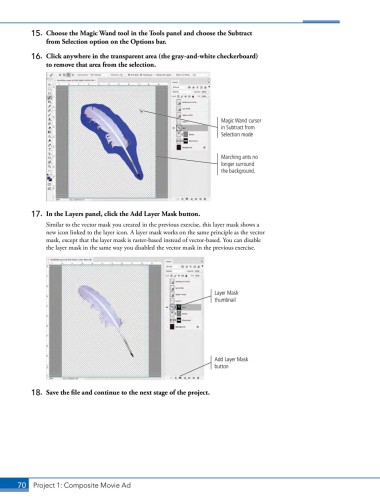
15.  Choose the Magic Wand tool in the Tools panel and choose the Subtract
               from Selection option on the Options bar.

           16.  Click anywhere in the transparent area (the gray-and-white checkerboard)
               to remove that area from the selection.


                                                                      Magic Wand cursor
                                                                      in Subtract from
                                                                      Selection mode


                                                                      Marching ants no
                                                                      longer surround
                                                                      the background.


           17.  In the Layers panel, click the Add Layer Mask button.
               Similar to the vector mask you created in the previous exercise, this layer mask shows a
               new icon linked to the layer icon. A layer mask works on the same principle as the vector
               mask, except that the layer mask is raster-based instead of vector-based. You can disable
               the layer mask in the same way you disabled the vector mask in the previous exercise.


                                                                    Layer Mask
                                                                    thumbnail


                                                                    Add Layer Mask
                                                                    button


           18.  Save the file and continue to the next stage of the project.


       70 Project 1: Composite Movie Ad

