


Page 50 - CC2017_WD_Look_Inside
P. 50
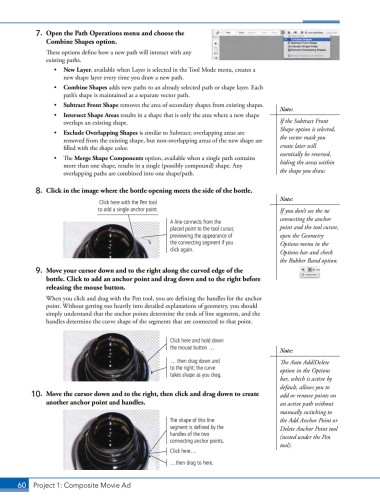
7.  Open the Path Operations menu and choose the
               Combine Shapes option.

               These options define how a new path will interact with any
               existing paths.
                  •  New Layer, available when Layer is selected in the Tool Mode menu, creates a
                     new shape layer every time you draw a new path.
                  •  Combine Shapes adds new paths to an already selected path or shape layer. Each
                     path’s shape is maintained as a separate vector path.
                  •  Subtract Front Shape removes the area of secondary shapes from existing shapes.
                                                                                        Note:
                  •  Intersect Shape Areas results in a shape that is only the area where a new shape
                     overlaps an existing shape.                                        If the Subtract Front
                                                                                        Shape option is selected,
                  •  Exclude Overlapping Shapes is similar to Subtract; overlapping areas are
                     removed from the existing shape, but non-overlapping areas of the new shape are   the vector mask you
                     filled with the shape color.                                       create later will
                                                                                        essentially be reversed,
                  •  The Merge Shape Components option, available when a single path contains
                     more than one shape, results in a single (possibly compound) shape. Any   hiding the areas within
                     overlapping paths are combined into one shape/path.                the shape you draw.

            8.  Click in the image where the bottle opening meets the side of the bottle.
                                                                                        Note:
                                Click here with the Pen tool
                                to add a single anchor point.                           If you don’t see the ne
                                                                                        connecting the anchor
                                                      A line connects from the
                                                      placed point to the tool cursor,   point and the tool cursor,
                                                      previewing the appearance of      open the Geometry
                                                      the connecting segment if you     Options menu in the
                                                      click again.                      Options bar and check
                                                                                        the Rubber Band option.
            9.  Move your cursor down and to the right along the curved edge of the
               bottle. Click to add an anchor point and drag down and to the right before
               releasing the mouse button.

               When you click and drag with the Pen tool, you are defining the handles for the anchor
               point. Without getting too heavily into detailed explanations of geometry, you should
               simply understand that the anchor points determine the ends of line segments, and the
               handles determine the curve shape of the segments that are connected to that point.


                                                      Click here and hold down
                                                      the mouse button …                Note:

                                                      … then drag down and              The Auto Add/Delete
                                                      to the right; the curve           option in the Options
                                                      takes shape as you drag.
                                                                                        bar, which is active by
                                                                                        default, allows you to
           10.  Move the cursor down and to the right, then click and drag down to create   add or remove points on
               another anchor point and handles.                                        an active path without
                                                                                        manually switching to
                                                      The shape of this line            the Add Anchor Point or
                                                      segment is defined by the         Delete Anchor Point tool
                                                      handles of the two                (nested under the Pen
                                                      connecting anchor points.
                                                                                        tool).
                                                      Click here…
                                                      …then drag to here.


       60 Project 1: Composite Movie Ad

