


Page 51 - CC2017_WD_Look_Inside
P. 51
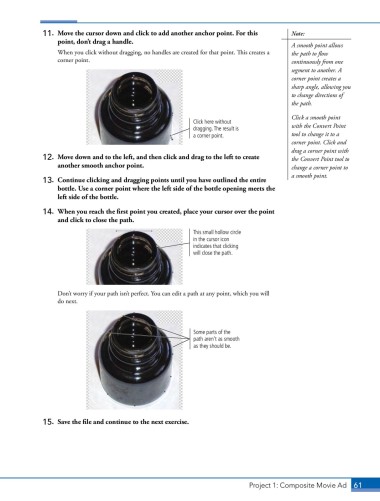
11.  Move the cursor down and click to add another anchor point. For this    Note:
                   point, don’t drag a handle.
                                                                                            A smooth point allows
                   When you click without dragging, no handles are created for that point. This creates a   the path to flow
                   corner point.                                                            continuously from one
                                                                                            segment to another. A
                                                                                            corner point creates a
                                                                                            sharp angle, allowing you
                                                                                            to change directions of
                                                                                            the path.

                                                                                            Click a smooth point
                                                             Click here without             with the Convert Point
                                                             dragging. The result is
                                                             a corner point.                tool to change it to a
                                                                                            corner point. Click and
                                                                                            drag a corner point with
               12.  Move down and to the left, and then click and drag to the left to create   the Convert Point tool to
                   another smooth anchor point.                                             change a corner point to
                                                                                            a smooth point.
               13.  Continue clicking and dragging points until you have outlined the entire
                   bottle. Use a corner point where the left side of the bottle opening meets the
                   left side of the bottle.
               14.  When you reach the first point you created, place your cursor over the point
                   and click to close the path.

                                                             This small hollow circle
                                                             in the cursor icon
                                                             indicates that clicking
                                                             will close the path.


                   Don’t worry if your path isn’t perfect. You can edit a path at any point, which you will
                   do next.


                                                             Some parts of the
                                                             path aren’t as smooth
                                                             as they should be.


               15.  Save the file and continue to the next exercise.


                                                                               Project 1: Composite Movie Ad    61

