


Page 49 - CC2017_WD_Look_Inside
P. 49
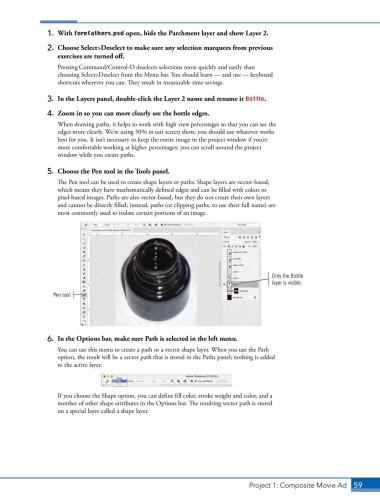
1.  With forefathers.psd open, hide the Parchment layer and show Layer 2.
                2.  Choose Select>Deselect to make sure any selection marquees from previous
                   exercises are turned off.
                   Pressing Command/Control-D deselects selections more quickly and easily than
                   choosing Select>Deselect from the Menu bar. You should learn — and use — keyboard
                   shortcuts wherever you can. They result in measurable time savings.

                3.  In the Layers panel, double-click the Layer 2 name and rename it Bottle.

                4.  Zoom in so you can more clearly see the bottle edges.

                   When drawing paths, it helps to work with high view percentages so that you can see the
                   edges more clearly. We’re using 50% in our screen shots; you should use whatever works
                   best for you. It isn’t necessary to keep the entire image in the project window if you’re
                   more comfortable working at higher percentages; you can scroll around the project
                   window while you create paths.

                5.  Choose the Pen tool in the Tools panel.
                   The Pen tool can be used to create shape layers or paths. Shape layers are vector-based,
                   which means they have mathematically defined edges and can be filled with colors or
                   pixel-based images. Paths are also vector-based, but they do not create their own layers
                   and cannot be directly filled; instead, paths (or clipping paths, to use their full name) are
                   most commonly used to isolate certain portions of an image.


                                                                                      Only the Bottle
                                                                                      layer is visible.
                  Pen tool


                6.  In the Options bar, make sure Path is selected in the left menu.

                   You can use this menu to create a path or a vector shape layer. When you use the Path
                   option, the result will be a vector path that is stored in the Paths panel; nothing is added
                   to the active layer.


                   If you choose the Shape option, you can define fill color, stroke weight and color, and a
                   number of other shape attributes in the Options bar. The resulting vector path is stored
                   on a special layer called a shape layer.


                                                                               Project 1: Composite Movie Ad    59

