


Page 75 - Adobe Photoshop and Dreamviewer 2021
P. 75
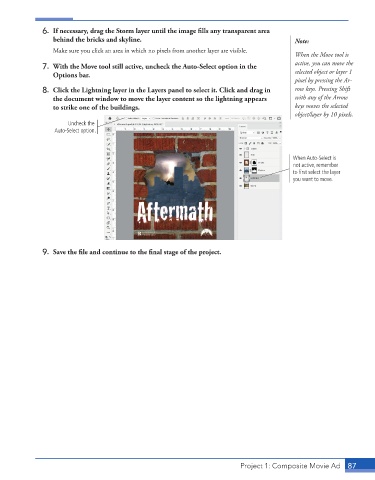
6.  If necessary, drag the Storm layer until the image fills any transparent area
                 behind the bricks and skyline.                                            Note:
                 Make sure you click an area in which no pixels from another layer are visible.
                                                                                           When the Move tool is
                                                                                           active, you can move the
              7.  With the Move tool still active, uncheck the Auto-Select option in the   selected object or layer 1
                 Options bar.
                                                                                           pixel by pressing the Ar-
              8.  Click the Lightning layer in the Layers panel to select it. Click and drag in   row keys. Pressing Shift
                 the document window to move the layer content so the lightning appears    with any of the Arrow
                 to strike one of the buildings.                                           keys moves the selected
                                                                                           object/layer by 10 pixels.
                      Uncheck the
                  Auto-Select option.


                                                                                          When Auto-Select is
                                                                                          not active, remember
                                                                                          to first select the layer
                                                                                          you want to move.


              9.  Save the file and continue to the final stage of the project.


                                                                          Project 1: Composite Movie Ad    87

