


Page 76 - Adobe Photoshop and Dreamviewer 2021
P. 76
STAGE 4 / Saving Files for Multiple Media
At the beginning of the project, you saved this file in Photoshop’s native format (PSD). However,
many Photoshop projects require saving the completed file in at least one other format. Many artists
prefer to leave all files in the PSD format because then, there is only one file to track. Others prefer
to send only flattened TIFF files of their artwork because the individual elements can’t be changed.
Ultimately, the format (or formats, if the file is being used in multiple places) you use will
depend on where and how the file is being placed. For this project, you have been asked to create a
flattened, high-resolution TIFF file and a low-resolution JPEG file for use on a website.
Save a Flat TIFF File
The printed magazine suggests that ads created in Photoshop be submitted as flat
TIFF files. Since you designed the ad to incorporate bleeds for pages up to 8.5 1 11,
all you have to do for this version is save the file in the appropriate format.
1. With aftermath.psd open, choose File>Save As.
2. Choose File>Save As. In the resulting dialog box, click the Save on Your
Computer button (if necessary).
3. Navigate to your WIP>Movie folder as the target location for saving the
final files (if necessary).
The Save As dialog box defaults to the last-used location. If you continued the entire
way through this project without stopping, you won’t have to navigate.
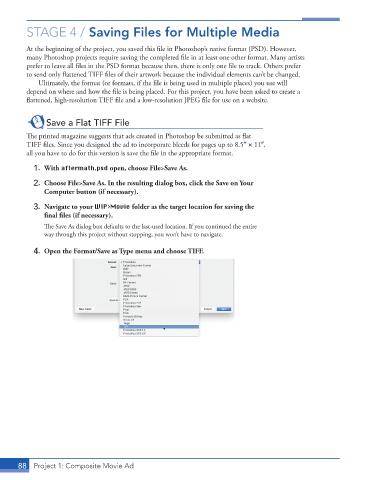
4. Open the Format/Save as Type menu and choose TIFF.
88 Project 1: Composite Movie Ad

