


Page 74 - Adobe Photoshop and Dreamviewer 2021
P. 74
Arrange Layer Position and Stacking Order
         The ad is almost final, but a few pieces are still not quite in position. You already know
         you can use the Move tool to move the contents of a layer around on the canvas.
         You can also move a layer to any position in the stacking order (the top-to-bottom
         position of a layer) by simply dragging it to a new position in the Layers panel.

           1.  With aftermath.psd open, make all layers visible.
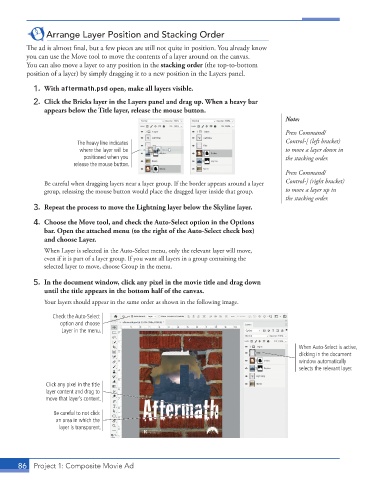
           2.  Click the Bricks layer in the Layers panel and drag up. When a heavy bar
              appears below the Title layer, release the mouse button.
                                                                                        Note:
                                                                                        Press Command/
                         The heavy line indicates                                       Control-[ (left bracket)
                         where the layer will be                                        to move a layer down in
                           positioned when you                                          the stacking order.
                        release the mouse button.
                                                                                        Press Command/
               Be careful when dragging layers near a layer group. If the border appears around a layer   Control-] (right bracket)
               group, releasing the mouse button would place the dragged layer inside that group.   to move a layer up in
                                                                                        the stacking order.
           3.  Repeat the process to move the Lightning layer below the Skyline layer.

           4.  Choose the Move tool, and check the Auto-Select option in the Options
              bar. Open the attached menu (to the right of the Auto-Select check box)
              and choose Layer.
               When Layer is selected in the Auto-Select menu, only the relevant layer will move,
               even if it is part of a layer group. If you want all layers in a group containing the
               selected layer to move, choose Group in the menu.

           5.  In the document window, click any pixel in the movie title and drag down
              until the title appears in the bottom half of the canvas.
               Your layers should appear in the same order as shown in the following image.

                 Check the Auto-Select
                   option and choose
                    Layer in the menu.


                                                                                            When Auto-Select is active,
                                                                                            clicking in the document
                                                                                            window automatically
                                                                                            selects the relevant layer.
               Click any pixel in the title
               layer content and drag to
               move that layer’s content.

                 Be careful to not click
                  an area in which the
                   layer is transparent.


       86  Project 1: Composite Movie Ad

