


Page 73 - Adobe Photoshop and Dreamviewer 2021
P. 73
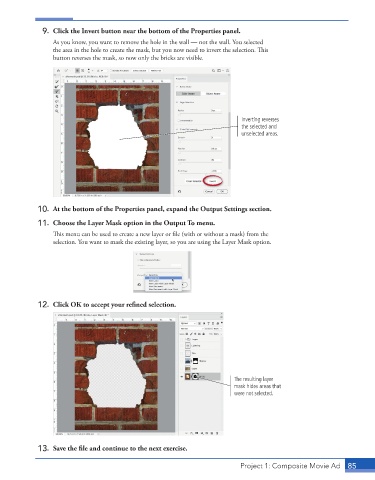
9.  Click the Invert button near the bottom of the Properties panel.
                 As you know, you want to remove the hole in the wall — not the wall. You selected
                 the area in the hole to create the mask, but you now need to invert the selection. This

                 button reverses the mask, so now only the bricks are visible.


                                                                           Inverting reverses
                                                                           the selected and
                                                                           unselected areas.


             10.  At the bottom of the Properties panel, expand the Output Settings section.

             11.  Choose the Layer Mask option in the Output To menu.

                 This menu can be used to create a new layer or file (with or without a mask) from the

                 selection. You want to mask the existing layer, so you are using the Layer Mask option.


             12.  Click OK to accept your refi ned selection.


                                                                        The resulting layer
                                                                        mask hides areas that
                                                                        were not selected.


             13.  Save the fi le and continue to the next exercise.


                                                                          Project 1: Composite Movie Ad    85

