


Page 68 - Adobe Photoshop and Dreamviewer 2021
P. 68
8.  In the Options bar, open the Brush Preset picker to access the tool options.
               This panel shows the different brushes that are included with Photoshop. The default
               brush set includes a number of specific-diameter hard- and soft-edge brushes, as well
               as some artistic options. A number below a brush icon shows the size of the brush; if
               you click a specific brush in the panel, the same number displays in the Size field.

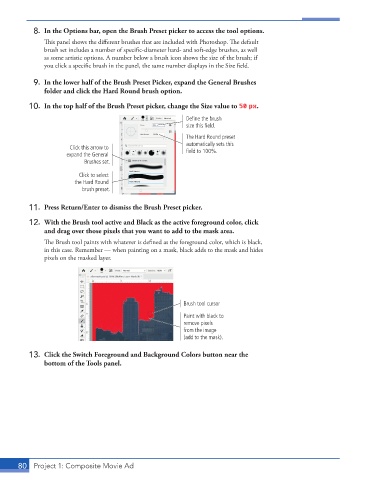
           9.  In the lower half of the Brush Preset Picker, expand the General Brushes
               folder and click the Hard Round brush option.

          10.  In the top half of the Brush Preset picker, change the Size value to 50 px.

                                                          Define the brush
                                                          size this field.
                                                          The Hard Round preset
                                                          automatically sets this
                      Click this arrow to
                     expand the General                   field to 100%.
                           Brushes set.

                         Click to select
                        the Hard Round
                          brush preset.


          11.  Press Return/Enter to dismiss the Brush Preset picker.

          12.  With the Brush tool active and Black as the active foreground color, click
               and drag over those pixels that you want to add to the mask area.
               The Brush tool paints with whatever is defined as the foreground color, which is black,
               in this case. Remember — when painting on a mask, black adds to the mask and hides
               pixels on the masked layer.


                                                         Brush tool cursor

                                                         Paint with black to
                                                         remove pixels
                                                         from the image
                                                         (add to the mask).

          13.  Click the Switch Foreground and Background Colors button near the
               bottom of the Tools panel.


       80  Project 1: Composite Movie Ad

