


Page 66 - Adobe Photoshop and Dreamviewer 2021
P. 66
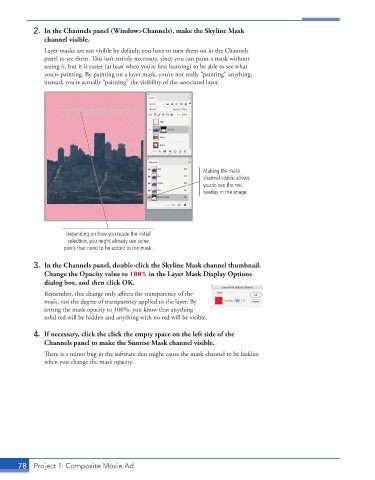
2.  In the Channels panel (Window>Channels), make the Skyline Mask
               channel visible.
               Layer masks are not visible by default; you have to turn them on in the Channels
               panel to see them. This isn’t strictly necessary, since you can paint a mask without
               seeing it, but it is easier (at least when you’re first learning) to be able to see what
               you’re painting. By painting on a layer mask, you’re not really “painting” anything;
               instead, you’re actually “painting” the visibility of the associated layer.


                                                               Making the mask
                                                               channel visible allows
                                                               you to see the red
                                                               overlay in the image.


                     Depending on how you made the initial
                      selection, you might already see some
                    pixels that need to be added to the mask.

           3.  In the Channels panel, double-click the Skyline Mask channel thumbnail.
               Change the Opacity value to 100% in the Layer Mask Display Options
               dialog box, and then click OK.
               Remember, this change only affects the transparency of the
               mask, not the degree of transparency applied to the layer. By
               setting the mask opacity to 100%, you know that anything
               solid red will be hidden and anything with no red will be visible.

           4.  If necessary, click the click the empty space on the left side of the
               Channels panel to make the Sunrise Mask channel visible.

               There is a minor bug in the software that might cause the mask channel to be hidden
               when you change the mask opacity.


       78  Project 1: Composite Movie Ad

