


Page 47 - Adobe Photoshop and Dreamviewer 2021
P. 47
13.  Click the Commit Transform button on the Options bar (or press
                 Return/Enter) to finalize the transformation.
                 If you press Return/Enter, you have to press it twice to finalize the transformation.
                 The first time you press it, you apply the change to the active field; the second time,
                 you finalize the transformation and exit Free Transform mode.

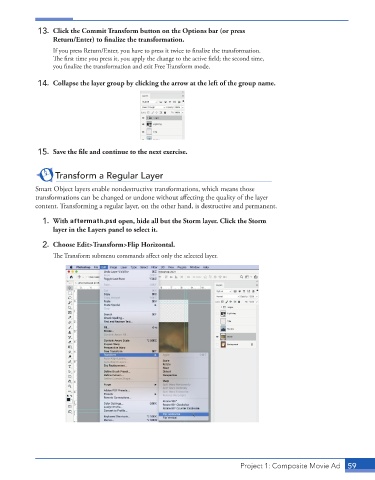
             14.  Collapse the layer group by clicking the arrow at the left of the group name.


             15.  Save the file and continue to the next exercise.


                  Transform a Regular Layer

            Smart Object layers enable nondestructive transformations, which means those
            transformations can be changed or undone without affecting the quality of the layer
            content. Transforming a regular layer, on the other hand, is destructive and permanent.

              1.  With aftermath.psd open, hide all but the Storm layer. Click the Storm
                 layer in the Layers panel to select it.

              2.  Choose Edit>Transform>Flip Horizontal.
                 The Transform submenu commands affect only the selected layer.


                                                                          Project 1: Composite Movie Ad    59

