


Page 46 - Adobe Photoshop and Dreamviewer 2021
P. 46
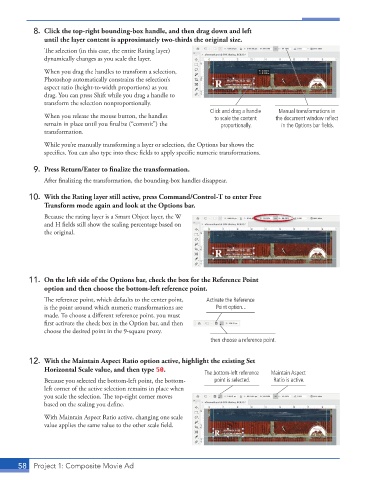
8.  Click the top-right bounding-box handle, and then drag down and left
              until the layer content is approximately two-thirds the original size.
               The selection (in this case, the entire Rating layer)

               dynamically changes as you scale the layer.
               When you drag the handles to transform a selection,
               Photoshop automatically constrains the selection’s
               aspect ratio (height-to-width proportions) as you
               drag. You can press Shift while you drag a handle to
               transform the selection nonproportionally.
                                                                 Click and drag a handle   Manual transformations in
               When you release the mouse button, the handles     to scale the content   the document window reflect
               remain in place until you finalize (“commit”) the    proportionally.    in the Options bar fields.

               transformation.
               While you’re manually transforming a layer or selection, the Options bar shows the

               specifics. You can also type into these fields to apply specific numeric transformations.


          9.  Press Return/Enter to fi nalize the transformation.
               After finalizing the transformation, the bounding-box handles disappear.

          10.  With the Rating layer still active, press Command/Control-T to enter Free
              Transform mode again and look at the Options bar.
               Because the rating layer is a Smart Object layer, the W
               and H fields still show the scaling percentage based on

               the original.


          11.  On the left side of the Options bar, check the box for the Reference Point
              option and then choose the bottom-left reference point.

               The reference point, which defaults to the center point,   Activate the Reference
               is the point around which numeric transformations are   Point option...
               made. To choose a different reference point, you must

               first activate the check box in the Option bar, and then

               choose the desired point in the 9-square proxy.
                                                                 then choose a reference point.


          12.  With the Maintain Aspect Ratio option active, highlight the existing Set
              Horizontal Scale value, and then type 50.
                                                               The bottom-left reference   Maintain Aspect
               Because you selected the bottom-left point, the bottom-  point is selected.  Ratio is active.
               left corner of the active selection remains in place when
               you scale the selection. The top-right corner moves

               based on the scaling you define.

               With Maintain Aspect Ratio active, changing one scale
               value applies the same value to the other scale field.


       58  Project 1: Composite Movie Ad

