


Page 41 - Adobe Photoshop and Dreamviewer 2021
P. 41
Working with Embedded and Linked Smart Objects

             In this project you used the Place Embedded option to create   Linked fi les also have potential disadvantages. As we
             a Smart Object layer containing the placed fi le data; the   mentioned previously, double-clicking a Smart Object layer
             embedded fi le data became a part of the parent fi le.  thumbnail opens the linked or embedded fi le in an application
                                                             that can edit the relevant data. If you are working with linked
             If you double-click the thumbnail icon of an embedded Smart   Smart Object layers, any changes you make affect the original
             Object, the embedded fi le opens in an application that can   fi le data. This means your changes appear not only in the
             edit the stored data — AI fi les open in Illustrator; PSD, TIFF,   parent Photoshop fi le where it is linked, but also in any other
             and JPEG fi les open in Photoshop.               fi le that links to the same data.

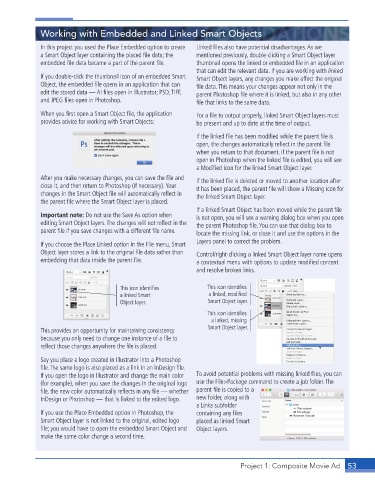
             When you fi rst open a Smart Object fi le, the application   For a fi le to output properly, linked Smart Object layers must
             provides advice for working with Smart Objects:   be present and up to date at the time of output.

                                                             If the linked fi le has been modifi ed while the parent fi le is
                                                             open, the changes automatically refl ect in the parent fi le
                                                             when you return to that document. If the parent fi le is not
                                                             open in Photoshop when the linked fi le is edited, you will see
                                                             a Modifi ed icon for the linked Smart Object layer.
             After you make necessary changes, you can save the fi le and   If the linked fi le is deleted or moved to another location after
             close it, and then return to Photoshop (if necessary). Your   it has been placed, the parent fi le will show a Missing icon for
             changes in the Smart Object fi le will automatically refl ect in   the linked Smart Object layer.
             the parent fi le where the Smart Object layer is placed.
                                                             If a linked Smart Object has been moved while the parent fi le
             Important note: Do not use the Save As option when   is not open, you will see a warning dialog box when you open
             editing Smart Object layers. The changes will not refl ect in the   the parent Photoshop fi le. You can use that dialog box to
             parent fi le if you save changes with a different fi le name.  locate the missing link, or close it and use the options in the

             If you choose the Place Linked option in the File menu, Smart   Layers panel to correct the problem.
             Object layer stores a link to the original fi le data rather than   Control/right-clicking a linked Smart Object layer name opens
             embedding that data inside the parent fi le.     a contextual menu with options to update modifi ed content
                                                             and resolve broken links.

                                      This icon identifies      This icon identifies
                                      a linked Smart             a linked, modified
                                      Object layer.             Smart Object layer.
                                                                This icon identifies
                                                                  a linked, missing
             This provides an opportunity for maintaining consistency   Smart Object layer.
             because you only need to change one instance of a fi le to
             refl ect those changes anywhere the fi le is placed.

             Say you place a logo created in Illustrator into a Photoshop
             fi le. The same logo is also placed as a link in an InDesign fi le.
             If you open the logo in Illustrator and change the main color   To avoid potential problems with missing linked fi les, you can
             (for example), when you save the changes in the original logo   use the File>Package command to create a job folder. The
             fi le, the new color automatically refl ects in any fi le — whether   parent fi le is copied to a
             InDesign or Photoshop — that is linked to the edited logo.  new folder, along with
                                                             a Links subfolder
             If you use the Place Embedded option in Photoshop, the   containing any fi les
             Smart Object layer is not linked to the original, edited logo   placed as linked Smart
             fi le; you would have to open the embedded Smart Object and   Object layers.
             make the same color change a second time.


                                                                          Project 1: Composite Movie Ad    53

