


Page 23 - Adobe Photoshop and Dreamviewer 2021
P. 23
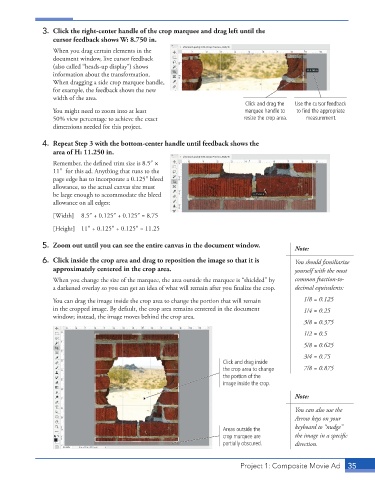
3.  Click the right-center handle of the crop marquee and drag left until the
                 cursor feedback shows W: 8.750 in.
                 When you drag certain elements in the
                 document window, live cursor feedback
                 (also called “heads-up display”) shows
                 information about the transformation.
                 When dragging a side crop marquee handle,
                 for example, the feedback shows the new
                 width of the area.
                                                                            Click and drag the   Use the cursor feedback
                 You might need to zoom into at least                       marquee handle to   to find the appropriate
                 50% view percentage to achieve the exact                  resize the crop area.  measurement.
                 dimensions needed for this project.

              4.  Repeat Step 3 with the bottom-center handle until feedback shows the
                 area of H: 11.250 in.
                 Remember, the defined trim size is 8.5″ 1
                 11″ for this ad. Anything that runs to the
                 page edge has to incorporate a 0.125″ bleed
                 allowance, so the actual canvas size must
                 be large enough to accommodate the bleed
                 allowance on all edges:
                 [Width]   8.5″ + 0.125″ + 0.125″ = 8.75

                 [Height]   11″ + 0.125″ + 0.125″ = 11.25

              5.  Zoom out until you can see the entire canvas in the document window.     Note:

              6.  Click inside the crop area and drag to reposition the image so that it is   You should familiarize
                 approximately centered in the crop area.                                  yourself with the most
                 When you change the size of the marquee, the area outside the marquee is “shielded” by   common fraction-to-
                 a darkened overlay so you can get an idea of what will remain after you finalize the crop.   decimal equivalents:
                 You can drag the image inside the crop area to change the portion that will remain   1/8 = 0.125
                 in the cropped image. By default, the crop area remains centered in the document   1/4 = 0.25
                 window; instead, the image moves behind the crop area.
                                                                                              3/8 = 0.375
                                                                                              1/2 = 0.5
                                                                                              5/8 = 0.625
                                                                                              3/4 = 0.75
                                                                     Click and drag inside
                                                                     the crop area to change   7/8 = 0.875
                                                                     the portion of the
                                                                     image inside the crop.

                                                                                           Note:
                                                                                           You can also use the
                                                                                           Arrow keys on your
                                                                                           keyboard to “nudge”
                                                                     Areas outside the
                                                                     crop marquee are      the image in a specific
                                                                     partially obscured.   direction.


                                                                          Project 1: Composite Movie Ad    35

