


Page 22 - Adobe Photoshop and Dreamviewer 2021
P. 22
Crop the Canvas and Place Ruler Guides
         The final step in preparing the workspace is defining the live area of the page. Trim
         size is the actual size of a page once it has been cut out of the press sheet. According
         to your client, the magazine has a trim size of 8.5″ 1 11″.
             Any elements that print right to the edge of a page (called bleeding) must actually
         extend beyond the defined trim size. The bleed allowance is the amount of extra space
         that should be included for these bleed objects. Most applications require at least a
         1/8″ bleed allowance on any bleed edge.
             Because of inherent variation in the mechanical printing and trimming
         processes, most magazines also define a safe, or live area. All important design
         elements (especially text) should stay within this live area. The live area for this
         project is 8″ 1 10.5″.

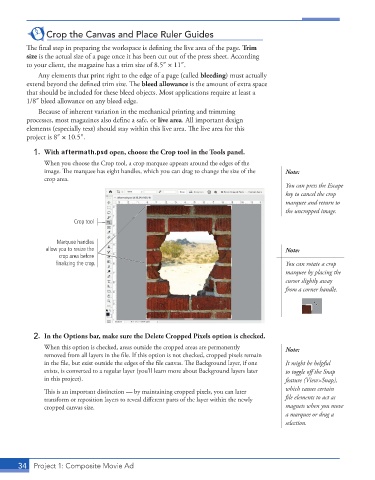
           1.  With aftermath.psd open, choose the Crop tool in the Tools panel.
               When you choose the Crop tool, a crop marquee appears around the edges of the
               image. The marquee has eight handles, which you can drag to change the size of the   Note:
               crop area.
                                                                                        You can press the Escape
                                                                                        key to cancel the crop
                                                                                        marquee and return to
                                                                                        the uncropped image.

                        Crop tool

                  Marquee handles
               allow you to resize the                                                  Note:
                   crop area before
                  finalizing the crop.                                                  You can rotate a crop
                                                                                        marquee by placing the
                                                                                        cursor slightly away
                                                                                        from a corner handle.


           2.  In the Options bar, make sure the Delete Cropped Pixels option is checked.
               When this option is checked, areas outside the cropped areas are permanently   Note:
               removed from all layers in the file. If this option is not checked, cropped pixels remain
               in the file, but exist outside the edges of the file canvas. The Background layer, if one   It might be helpful
               exists, is converted to a regular layer (you’ll learn more about Background layers later   to toggle off the Snap
               in this project).                                                        feature (View>Snap),
                                                                                        which causes certain
               This is an important distinction — by maintaining cropped pixels, you can later
               transform or reposition layers to reveal different parts of the layer within the newly   file elements to act as
               cropped canvas size.                                                     magnets when you move
                                                                                        a marquee or drag a
                                                                                        selection.


       34  Project 1: Composite Movie Ad

