


Page 73 - CC 2019 GD Look Inside
P. 73
Editing Similar Shapes with Global Edit

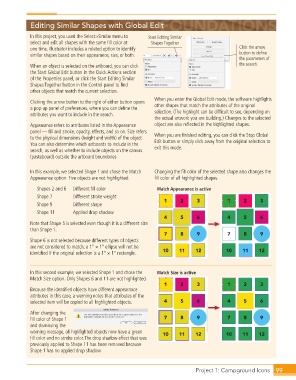
                  In this project, you used the Select>Similar menu to   Start Editing Similar
                  select and edit all shapes with the same fi ll color at   Shapes Together
                  one time. Illustrator includes a related option to identify                     Click the arrow
                  similar shapes based on their appearance, size, or both.                        button to define
                                                                                                  the parameters of
                  When an object is selected on the artboard, you can click                       the search.
                  the Start  Global Edit button in the Quick Actions section
                  of the  Properties panel, or click the Start Editing  Similar
                  Shapes Together button in the  Control panel to fi nd
                  other objects that match the current selection.
                                                                  When you enter the Global Edit mode, the software highlights
                  Clicking the arrow button to the right of either button opens   other shapes that match the attributes of the original
                  a pop-up panel of preferences, where you can defi ne the   selection. (The highlight can be diffi cult to see, depending on
                  attributes you want to include in the search.
                                                                  the actual artwork you are building.) Changes to the selected
                  Appearance refers to attributes listed in the Appearance   object are also refl ected in the highlighted shapes.
                  panel — fi ll and stroke, opacity, effects, and so on. Size refers
                  to the physical dimensions (height and width) of the object.   When you are fi nished editing, you can click the Stop Global
                  You can also determine which artboards to include in the   Edit button or simply click away from the original selection to
                  search, as well as whether to include objects on the canvas   exit this mode.
                  (pasteboard) outside the artboard boundaries


                  In this example, we selected Shape 1 and chose the Match   Changing the fi ll color of the selected shape also changes the
                  Appearance option. Five objects are not highlighted:  fi ll color of all highlighted shapes.

                     Shapes 2 and 6   Different fi ll color        Match Appearance is active
                     Shape 7      Different stroke weight
                     Shape 9      Different shape
                     Shape 11     Applied drop shadow

                  Note that Shape 5 is selected even though it is a different size
                  than Shape 1.

                  Shape 6 is not selected because different types of objects
                  are not considered to match; a 1″ 1 1″ ellipse will not be
                  identifi ed if the original selection is a 1″ 1 1″ rectangle.


                  In this second example, we selected Shape 1 and chose the   Match Size is active
                  Match Size option. Only Shapes 6 and 11 are not highlighted.

                  Because the identifi ed objects have different appearance
                  attributes in this case, a warning notes that attributes of the
                  selected item will be copied to all highlighted objects.
                  After changing the
                  fi ll color of Shape 1
                  and dismissing the
                  warning message, all highlighted objects now have a green
                  fi ll color and no stroke color. The drop shadow effect that was
                  previously applied to Shape 11 has been removed because
                  Shape 1 has no applied drop shadow.


                                                                                   Project 1: Campground Icons  99

