


Page 50 - CC 2019 GD Look Inside
P. 50
Create Artwork with Lines

              The Hiker icon is a perfect candidate for drawing with lines — which makes it ideal
              for introducing the Line Segment tool. In this exercise, you combine simple lines
              with other basic shapes to create the final icon.

                1.  With icons.ai open, make sure the Icon Art layer is active. Make the hiker
                   template art prominent in the document window.

                2.  Choose the Line Segment tool in the Tools panel. Using the Control panel,
                   set the Fill to None and the Stroke to 1-pt Black.
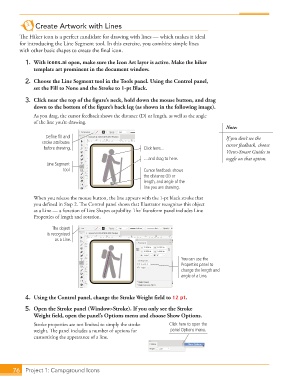
                3.  Click near the top of the figure’s neck, hold down the mouse button, and drag
                   down to the bottom of the figure’s back leg (as shown in the following image).
                   As you drag, the cursor feedback shows the distance (D) or length, as well as the angle
                   of the line you’re drawing.
                                                                                             Note:
                        Define fill and                                                      If you don’t see the
                      stroke attributes                                                      cursor feedback, choose
                       before drawing.                       Click here...
                                                                                             View>Smart Guides to
                                                             …and drag to here.              toggle on that option.
                        Line Segment
                               tool                          Cursor feedback shows
                                                             the distance (D) or
                                                             length, and angle of the
                                                             line you are drawing.

                   When you release the mouse button, the line appears with the 1-pt black stroke that
                   you defined in Step 2. The Control panel shows that Illustrator recognizes this object
                   as a Line — a function of Live Shapes capability. The Transform panel includes Line
                   Properties of length and rotation.

                          The object
                         is recognized
                           as a Line.


                                                                            You can use the
                                                                            Properties panel to
                                                                            change the length and
                                                                            angle of a Line.


                4.  Using the Control panel, change the Stroke Weight field to 12 pt.
                5.  Open the Stroke panel (Window>Stroke). If you only see the Stroke
                   Weight field, open the panel’s Options menu and choose Show Options.
                   Stroke properties are not limited to simply the stroke   Click here to open the
                   weight. The panel includes a number of options for   panel Options menu.
                   customizing the appearance of a line.


           76   Project 1: Campground Icons

