


Page 51 - CC 2019 GD Look Inside
P. 51
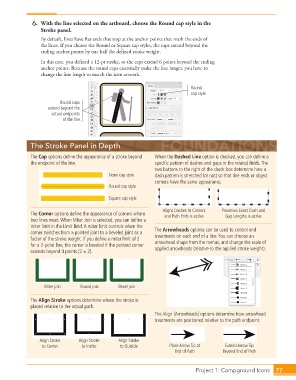
6.  With the line selected on the artboard, choose the Round cap style in the
                      Stroke panel.
                      By default, lines have flat ends that stop at the anchor points that mark the ends of
                      the lines. If you choose the Round or Square cap styles, the caps extend beyond the
                      ending anchor points by one half the defined stroke weight.
                      In this case, you defined a 12-pt stroke, so the caps extend 6 points beyond the ending
                      anchor points. Because the round caps essentially make the line longer, you have to
                      change the line length to match the icon artwork.


                                                                               Round
                                                                               cap style
                             Round caps
                         extend beyond the
                          actual endpoints
                              of the line.


                  The Stroke Panel in Depth

                  The Cap options define the appearance of a stroke beyond   When the Dashed Line option is checked, you can define a
                  the endpoint of the line.                       specific pattern of dashes and gaps in the related fields. The
                                                                  two buttons to the right of the check box determine how a
                                                None cap style    dash pattern is stretched (or not) so that line ends or object
                                                                  corners have the same appearance.
                                                Round cap style

                                                Square cap style

                                                                     Aligns Dashes to Corners   Preserves Exact Dash and
                  The Corner options define the appearance of corners where   and Path Ends is active  Gap Lengths is active
                  two lines meet. When Miter Join is selected, you can define a
                  miter limit in the Limit field. A miter limit controls when the
                  corner switches from a pointed joint to a beveled joint as a   The Arrowheads options can be used to control end
                  factor of the stroke weight. If you define a miter limit of 2   treatments on each end of a line. You can choose an
                  for a 2-point line, the corner is beveled if the pointed corner   arrowhead shape from the menus, and change the scale of
                  extends beyond 4 points (2 1 2).                applied arrowheads (relative to the applied stroke weight).


                       Miter join    Round join     Bevel join

                  The Align Stroke options determine where the stroke is
                  placed relative to the actual path.
                                                                  The Align [Arrowheads] options determine how arrowhead
                                                                  treatments are positioned relative to the path endpoint.


                      Align Stroke   Align Stroke   Align Stroke
                      to Center       to Inside     to Outside         Place Arrow Tip at    Extend Arrow Tip
                                                                         End of Path        Beyond End of Path


                                                                                 Project 1: Campground Icons    77

