


Page 21 - CC 2019 GD Look Inside
P. 21
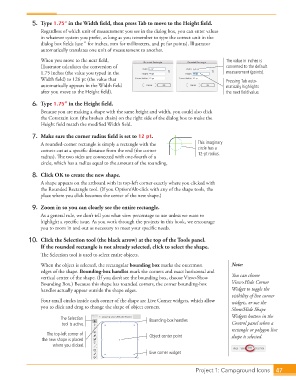
5. Type 1.75” in the Width fi eld, then press Tab to move to the Height fi eld.
                      Regardless of which unit of measurement you see in the dialog box, you can enter values
                      in whatever system you prefer, as long as you remember to type the correct unit in the
                      dialog box fi elds (use ″ for inches, mm for millimeters, and pt for points). Illustrator
                      automatically translates one unit of measurement to another.

                      When you move to the next fi eld,                                      The value in inches is
                      Illustrator calculates the conversion of                               converted to the default
                      1.75 inches (the value you typed in the                                measurement (points).
                      Width fi eld) to 126 pt (the value that                                Pressing Tab auto-
                      automatically appears in the Width fi eld                              matically highlights
                      after you move to the Height fi eld).                                  the next field value.

                  6. Type 1.75” in the Height fi eld.
                      Because you are making a shape with the same height and width, you could also click
                      the Constrain icon (the broken chain) on the right side of the dialog box to make the
                      Height fi eld match the modifi ed Width fi eld.

                  7.  Make sure the corner radius fi eld is set to 12 pt.
                      A rounded-corner rectangle is simply a rectangle with the   This imaginary
                      corners cut at a specifi c distance from the end (the corner   circle has a
                      radius). Th  e two sides are connected with one-fourth of a   12-pt radius.
                      circle, which has a  radius equal to the amount of the rounding.
                  8.  Click OK to create the new shape.
                      A shape appears on the artboard with its top-left corner exactly where you clicked with
                      the Rounded Rectangle tool. (If you Option/Alt-click with any of the shape tools, the
                      place where you click becomes the center of the new shape.)

                  9.  Zoom in so you can clearly see the entire rectangle.
                      As a general rule, we don’t tell you what view percentage to use unless we want to
                      highlight a specifi c issue. As you work through the projects in this book, we encourage
                      you to zoom in and out as necessary to meet your specifi c needs.

                  10.  Click the  Selection tool (the black arrow) at the top of the Tools panel.
                      If the rounded rectangle is not already selected, click to select the shape.
                      Th  e Selection tool is used to select entire objects.

                      When the object is selected, the rectangular  bounding box marks the outermost   Note:
                      edges of the shape. Bounding-box  handles mark the corners and exact horizontal and
                      vertical center of the shape. (If you don’t see the bounding box, choose View> Show   You can choose
                      Bounding Box.) Because this shape has rounded corners, the  corner bounding-box   View>Hide Corner
                      handles actually appear outside the shape edges.                         Widget to toggle the
                                                                                               visibility of live corner
                      Four small circles inside each corner of the shape are  Live Corner widgets, which allow   widgets, or use the
                      you to click and drag to change the shape of object corners.             Show/Hide Shape

                              The Selection                     Bounding-box handles           Widgets button in the
                              tool is active.                                                  Control panel when a
                                                                                               rectangle or polygon live
                        The top-left corner of                  Object center point            shape is selected.
                      the new shape is placed
                           where you clicked.
                                                                Live corner widget


                                                                                   Project 1: Campground Icons  47

