


Page 19 - CC 2019 GD Look Inside
P. 19
Defi ne Smart Guide Preferences

                 Adobe Illustrator provides many tools to help you create precise lines and shapes.
                 Smart Guides are dynamic snap-to guides that help you create, align, and transform
                 objects. Smart Guides also show you when the cursor is at a precise angle relative to
                 the original position of the object or point you’re moving. In this exercise, you will
                 make sure the correct Smart Guides are active.

                  1. With icons.ai open, make sure the Control panel is visible
                      (Window>Control).

                  2.  Click the Preferences button in the  Control panel or  Properties panel.
                      When nothing is selected in the fi le, you can access the  Preferences dialog box directly
                      from either panel. If something is selected in the fi le, you have to choose from the
                      Illustrator>Preferences (Macintosh) or Edit>Preferences (Windows) submenu.


                  3. Choose  Smart Guides in the list of categories on the left.
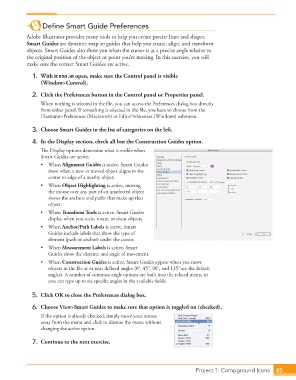
                  4.  In the Display section, check all but the Construction Guides option.
                      Th  e Display options determine what is visible when
                      Smart Guides are active:
                      • When  Alignment Guides is active, Smart Guides
                         show when a new or moved object aligns to the
                         center or edge of a nearby object.
                      • When  Object Highlighting is active, moving
                         the mouse over any part of an unselected object
                         shows the anchors and paths that make up that
                         object.
                      • When  Transform Tools is active, Smart Guides
                         display when you scale, rotate, or shear objects.
                      • When  Anchor/Path Labels is active, Smart
                         Guides include labels that show the type of
                         element (path or anchor) under the cursor.
                      • When  Measurement Labels is active, Smart
                         Guides show the distance and angle of movement.
                      • When  Construction Guides is active, Smart Guides appear when you move
                         objects in the fi le at or near defi ned angles (0°, 45°, 90°, and 135° are the default
                         angles). A number of common angle options are built into the related menu, or
                         you can type up to six specifi c angles in the available fi elds.

                  5.  Click OK to close the Preferences dialog box.

                  6.  Choose View>Smart Guides to make sure that option is toggled on (checked).
                      If the option is already checked, simply move your mouse
                      away from the menu and click to dismiss the menu without
                      changing the active option.

                  7.  Continue to the next exercise.


                                                                                   Project 1: Campground Icons  45

