


Page 17 - CC 2019 GD Look Inside
P. 17
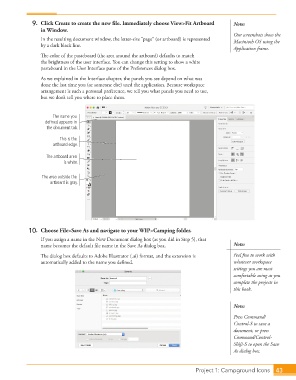
9.  Click Create to create the new fi le. Immediately choose View>Fit Artboard   Note:
                      in Window.
                                                                                                Our screenshots show the
                      In the resulting document window, the letter-size “page” (or artboard) is represented   Macintosh OS using the
                      by a dark black line.
                                                                                                Application frame.
                      Th  e color of the  pasteboard (the area around the artboard) defaults to match
                      the brightness of the user interface. You can change this setting to show a white
                      pasteboard in the  User Interface pane of the Preferences dialog box.
                      As we explained in the Interface chapter, the panels you see depend on what was
                      done the last time you (or someone else) used the application. Because workspace
                      arrangement is such a personal preference, we tell you what panels you need to use,
                      but we don’t tell you where to place them.


                           The name you
                        defined appears in
                        the document tab.

                             This is the
                           artboard edge.

                        The artboard area
                               is white.


                      The area outside the
                          artboard is gray.


                  10.  Choose File>Save As and navigate to your WIP>Camping folder.
                      If you assign a name in the New Document dialog box (as you did in Step 5), that
                      name becomes the default fi le name in the  Save As dialog box.           Note:

                      Th  e dialog box defaults to Adobe Illustrator (.ai) format, and the extension is   Feel free to work with
                      automatically added to the name you defi ned.                             whatever workspace
                                                                                                settings you are most
                                                                                                comfortable using as you
                                                                                                complete the projects in
                                                                                                this book.


                                                                                                Note:
                                                                                                Press Command/
                                                                                                Control-S to save a
                                                                                                document, or press
                                                                                                Command/Control-
                                                                                                Shift-S to open the Save
                                                                                                As dialog box.


                                                                                   Project 1: Campground Icons  43

