


Page 16 - CC 2019 GD Look Inside
P. 16
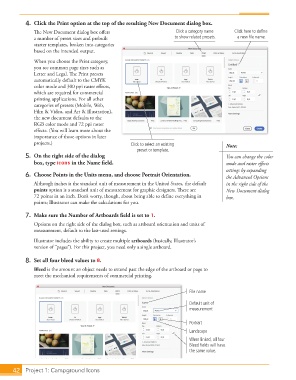
4.  Click the Print option at the top of the resulting New Document dialog box.
                   Th  e New Document dialog box off ers                  Click a category name   Click here to define
                   a number of preset sizes and prebuilt                 to show related presets.  a new file name.
                   starter templates, broken into categories
                   based on the intended output.
                   When you choose the Print category,
                   you see common page sizes such as
                   Letter and Legal. Th  e Print presets
                   automatically default to the CMYK
                   color mode and 300 ppi raster eff ects,
                   which are required for commercial
                   printing applications. For all other
                   categories of presets (Mobile, Web,
                   Film & Video, and Art & Illustration),
                   the new document defaults to the
                   RGB color mode and 72 ppi raster
                   eff ects. (You will learn more about the
                   importance of those options in later
                   projects.)                           Click to select an existing          Note:
                                                           preset or template.
               5.  On the right side of the dialog                                           You can change the color
                   box, type icons in the Name fi eld.                                       mode and raster eff ects
                                                                                             settings by expanding
               6.  Choose Points in the Units menu, and choose Portrait Orientation.         the Advanced Options
                   Although inches is the standard unit of measurement in the United States, the default   in the right side of the
                     points option is a standard  unit of measurement for graphic designers. Th  ere are   New Document dialog
                   72 points in an inch. Don’t worry, though, about being able to defi ne everything in   box.
                   points; Illustrator can make the calculations for you.

               7.  Make sure the Number of Artboards fi eld is set to 1.
                   Options on the right side of the dialog box, such as artboard orientation and units of
                   measurement, default  to the last-used settings.
                   Illustrator includes the ability to create multiple  artboards (basically, Illustrator’s
                   version of “pages”). For this project, you need only a single artboard.

               8.  Set all four  bleed values to 0.
                   Bleed is the amount an object needs to extend past the edge of the  artboard or page to
                   meet the mechanical requirements of commercial printing.


                                                                               File name

                                                                               Default unit of
                                                                               measurement


                                                                               Portrait
                                                                               Landscape
                                                                               When linked, all four
                                                                               Bleed fields will have
                                                                               the same value.


           42     Project 1: Campground Icons

