


Page 51 - CS6_PS_Look_Inside
P. 51
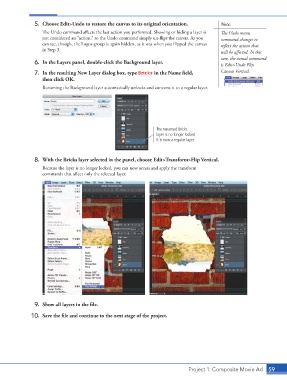
5.  Choose Edit>Undo to restore the canvas to its original orientation.      Note:
                        The Undo command affects the last action you performed. Showing or hiding a layer is   The Undo menu
                        not considered an “action,” so the Undo command simply un-flips the canvas. As you   command changes to
                        can see, though, the Logos group is again hidden, as it was when you flipped the canvas   reflect the action that
                        in Step 3.                                                               will be affected. In this

                                                                                                 case, the actual command
                    6.  In the Layers panel, double-click the Background layer.                  is Edit>Undo Flip
                    7.  In the resulting New Layer dialog box, type Bricks in the Name field,    Canvas Vertical.
                        then click OK.
                        Renaming the Background layer automatically unlocks and converts it to a regular layer.


                                                                      The renamed Bricks
                                                                      layer is no longer locked.
                                                                      It is now a regular layer.


                    8.  With the Bricks layer selected in the panel, choose Edit>Transform>Flip Vertical.

                        Because the layer is no longer locked, you can now access and apply the transform
                        commands that affect only the selected layer.


                    9.  Show all layers in the file.

                   10.  Save the file and continue to the next stage of the project.


                                                                                    Project 1: Composite Movie Ad   59

