


Page 54 - CS6_PS_Look_Inside
P. 54
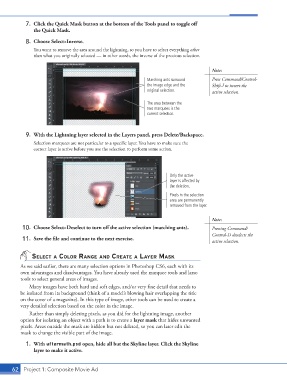
7.  Click the Quick Mask button at the bottom of the Tools panel to toggle off
                    the Quick Mask.

                 8.  Choose Select>Inverse.
                    You want to remove the area around the lightning, so you have to select everything other
                    than what you originally selected — in other words, the inverse of the previous selection.

                                                                                             Note:

                                                                   Marching ants surround    Press Command/Control-
                                                                   the image edge and the    Shift-I to invert the
                                                                   original selection.       active selection.

                                                                   The area between the
                                                                   two marquees is the
                                                                   current selection.


                 9.  With the Lightning layer selected in the Layers panel, press Delete/Backspace.
                    Selection marquees are not particular to a specific layer. You have to make sure the
                    correct layer is active before you use the selection to perform some action.


                                                                            Only the active
                                                                            layer is affected by
                                                                            the deletion.
                                                                            Pixels in the selection
                                                                            area are permanently
                                                                            removed from the layer.


                                                                                             Note:
                10.  Choose Select>Deselect to turn off the active selection (marching ants).  Pressing Command/
                                                                                             Control-D deselects the
                11.  Save the file and continue to the next exercise.                        active selection.


                   select A color rAnge And creAte A lAyer MAsk

               As we said earlier, there are many selection options in Photoshop CS6, each with its
               own advantages and disadvantages. You have already used the marquee tools and lasso
               tools to select general areas of images.
                  Many images have both hard and soft edges, and/or very fine detail that needs to
               be isolated from its background (think of a model’s blowing hair overlapping the title
               on the cover of a magazine). In this type of image, other tools can be used to create a
               very detailed selection based on the color in the image.
                  Rather than simply deleting pixels, as you did for the lightning image, another
               option for isolating an object with a path is to create a layer mask that hides unwanted
               pixels. Areas outside the mask are hidden but not deleted, so you can later edit the
               mask to change the visible part of the image.
                 1.  With aftermath.psd open, hide all but the Skyline layer. Click the Skyline
                    layer to make it active.


           62 Project 1: Composite Movie Ad

