


Page 50 - CS6_PS_Look_Inside
P. 50
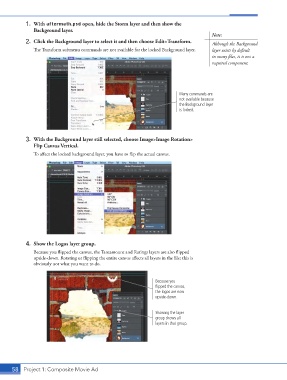
1.  With aftermath.psd open, hide the Storm layer and then show the
                    Background layer.
                                                                                             Note:
                 2.  Click the Background layer to select it and then choose Edit>Transform.  Although the Background
                    The Transform submenu commands are not available for the locked Background layer.   layer exists by default
                                                                                             in many files, it is not a
                                                                                             required component.


                                                                                Many commands are
                                                                                not available because
                                                                                the Background layer
                                                                                is locked.


                 3.  With the Background layer still selected, choose Image>Image Rotation>
                    Flip Canvas Vertical.
                    To affect the locked background layer, you have to flip the actual canvas.


                 4.  Show the Logos layer group.
                    Because you flipped the canvas, the Tantamount and Ratings layers are also flipped
                    upside-down. Rotating or flipping the entire canvas affects all layers in the file; this is
                    obviously not what you want to do.


                                                                      Because you
                                                                      flipped the canvas,
                                                                      the logos are now
                                                                      upside-down.


                                                                      Showing the layer
                                                                      group shows all
                                                                      layers in that group.


           58 Project 1: Composite Movie Ad

