


Page 53 - CS6_PS_Look_Inside
P. 53
5.  In the resulting dialog box, type 35 in the Feather Radius field. Click OK to
                        return to the image window.
                        The Feather Radius defines the distance from solid to
                        transparent. In the image window, there’s no apparent
                        difference in the selection because the marching ants can’t show shades of a selection.

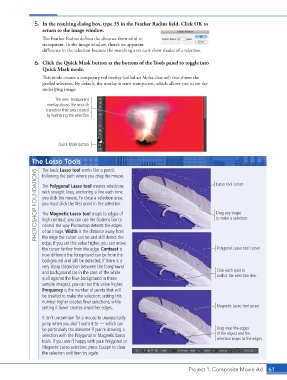
                    6.  Click the Quick Mask button at the bottom of the Tools panel to toggle into
                        Quick Mask mode.
                        This mode creates a temporary red overlay (called an Alpha channel) that shows the
                        graded selection. By default, the overlay is semi-transparent, which allows you to see the
                        underlying image.

                             The semi-transparent
                          overlay shows the smooth
                         transition that was created
                          by feathering the selection.


                              Quick Mask button


                    The Lasso Tools
                        The basic Lasso tool works like a pencil,
                     PHOTOSHOP FOUNDATIONS  The Polygonal Lasso tool creates selections        Lasso tool cursor
                        following the path where you drag the mouse.


                        with straight lines, anchoring a line each time
                        you click the mouse. To close a selection area,
                        you must click the first point in the selection.
                                                                                               Drag any shape
                        The Magnetic Lasso tool snaps to edges of
                                                                                               to make a selection.
                        high contrast; you can use the Options bar to
                        control the way Photoshop detects the edges
                        of an image. Width is the distance away from
                        the edge the cursor can be and still detect the
                        edge; if you set this value higher, you can move
                        the cursor farther from the edge. Contrast is                          Polygonal Lasso tool cursor
                        how different the foreground can be from the
                        background and still be detected; if there is a
                        very sharp distinction between the foreground
                        and background (as in the case of the white                            Click each spot to
                        quill against the blue background in these                             anchor the selection line.
                        sample images), you can set this value higher.
                        Frequency is the number of points that will
                        be created to make the selection; setting this
                        number higher creates finer selections, while
                        setting it lower creates smoother edges.                               Magnetic Lasso tool cursor

                        It isn’t uncommon for a mouse to unexpectedly
                        jump when you don’t want it to — which can
                        be particularly troublesome if you’re drawing a                        Drag near the edges
                        selection with the Polygonal or Magnetic Lasso                         of the object and the
                        tools. If you aren’t happy with your Polygonal or                      selection snaps to the edges.
                        Magnetic Lasso selection, press Escape to clear
                        the selection and then try again.


                                                                                    Project 1: Composite Movie Ad   61

