


Page 43 - CS6_PS_Look_Inside
P. 43
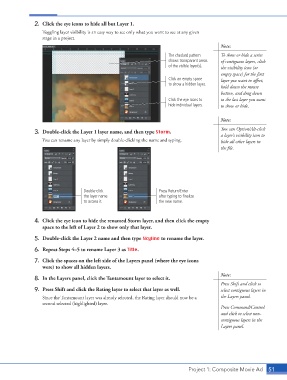
2.  Click the eye icons to hide all but Layer 1.
                        Toggling layer visibility is an easy way to see only what you want to see at any given
                        stage in a project.
                                                                                                 Note:

                                                                           The checked pattern   To show or hide a series
                                                                           shows transparent areas   of contiguous layers, click
                                                                           of the visible layer(s).  the visibility icon (or
                                                                                                 empty space) for the first
                                                                           Click an empty space   layer you want to affect,
                                                                           to show a hidden layer.
                                                                                                 hold down the mouse
                                                                                                 button, and drag down
                                                                           Click the eye icons to   to the last layer you want
                                                                           hide individual layers.  to show or hide.

                                                                                                 Note:

                                                                                                 You can Option/Alt-click
                    3.  Double-click the Layer 1 layer name, and then type Storm.                a layer’s visibility icon to
                        You can rename any layer by simply double-clicking the name and typing.   hide all other layers in
                                                                                                 the file.


                                         Double-click                   Press Return/Enter
                                         the layer name                 after typing to finalize
                                         to access it.                  the new name.


                    4.  Click the eye icon to hide the renamed Storm layer, and then click the empty
                        space to the left of Layer 2 to show only that layer.

                    5.  Double-click the Layer 2 name and then type Skyline to rename the layer.
                    6.  Repeat Steps 4–5 to rename Layer 3 as Title.

                    7.  Click the spaces on the left side of the Layers panel (where the eye icons
                        were) to show all hidden layers.
                                                                                                 Note:
                    8.  In the Layers panel, click the Tantamount layer to select it.
                                                                                                 Press Shift and click to
                    9.  Press Shift and click the Rating layer to select that layer as well.     select contiguous layers in

                        Since the Tantamount layer was already selected, the Rating layer should now be a   the Layers panel.
                        second selected (highlighted) layer.
                                                                                                 Press Command/Control
                                                                                                 and click to select non-
                                                                                                 contiguous layers in the
                                                                                                 Layers panel.


                                                                                    Project 1: Composite Movie Ad   51

