


Page 42 - CS6_PS_Look_Inside
P. 42
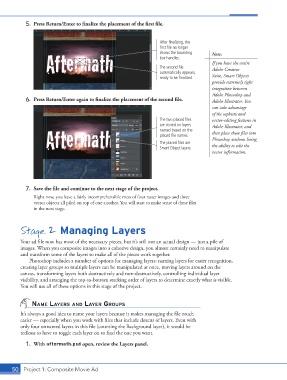
5.  Press Return/Enter to finalize the placement of the first file.


                                                                        After finalizing, the
                                                                        first file no longer
                                                                        shows the bounding   Note:
                                                                        box handles.
                                                                                             If you have the entire
                                                                        The second file      Adobe Creative
                                                                        automatically appears,
                                                                        ready to be finalized.  Suite, Smart Objects
                                                                                             provide extremely tight
                                                                                             integration between
                                                                                             Adobe Photoshop and
                 6.  Press Return/Enter again to finalize the placement of the second file.  Adobe Illustrator. You
                                                                                             can take advantage
                                                                                             of the sophisticated
                                                                        The two placed files   vector-editing features in
                                                                        are stored on layers   Adobe Illustrator, and
                                                                        named based on the
                                                                        placed file names.   then place those files into
                                                                                             Photoshop without losing
                                                                        The placed files are
                                                                        Smart Object layers.  the ability to edit the
                                                                                             vector information.


                 7.  Save the file and continue to the next stage of the project.
                    Right now, you have a fairly incomprehensible mess of four raster images and three
                    vector objects all piled on top of one another. You will start to make sense of these files
                    in the next stage.


               Stage 2 Managing Layers

               Your ad file now has most of the necessary pieces, but it’s still not an actual design — just a pile of
               images. When you composite images into a cohesive design, you almost certainly need to manipulate
               and transform some of the layers to make all of the pieces work together.
                  Photoshop includes a number of options for managing layers: naming layers for easier recognition,
               creating layer groups so multiple layers can be manipulated at once, moving layers around on the
               canvas, transforming layers both destructively and non-destructively, controlling individual layer
               visibility, and arranging the top-to-bottom stacking order of layers to determine exactly what is visible.
               You will use all of these options in this stage of the project.


                   nAMe lAyers And lAyer groups

               It’s always a good idea to name your layers because it makes managing the file much
               easier — especially when you work with files that include dozens of layers. Even with
               only four unnamed layers in this file (counting the Background layer), it would be
               tedious to have to toggle each layer on to find the one you want.
                 1.  With aftermath.psd open, review the Layers panel.


           50 Project 1: Composite Movie Ad

