


Page 37 - CS6_PS_Look_Inside
P. 37
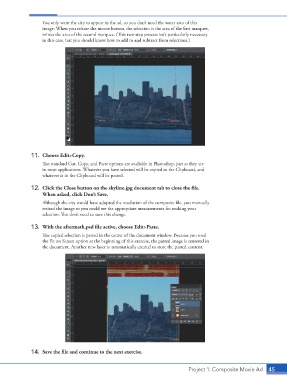
You only want the city to appear in the ad, so you don’t need the water area of this
                        image. When you release the mouse button, the selection is the area of the first marquee,
                        minus the area of the second marquee. (This two-step process isn’t particularly necessary
                        in this case, but you should know how to add to and subtract from selections.)


                   11.  Choose Edit>Copy.
                        The standard Cut, Copy, and Paste options are available in Photoshop, just as they are
                        in most applications. Whatever you have selected will be copied to the Clipboard, and
                        whatever is in the Clipboard will be pasted.


                   12.  Click the Close button on the skyline.jpg document tab to close the file.
                        When asked, click Don’t Save.
                        Although the city would have adopted the resolution of the composite file, you manually
                        resized the image so you could see the appropriate measurements for making your
                        selection. You don’t need to save this change.

                   13.  With the aftermath.psd file active, choose Edit>Paste.

                        The copied selection is pasted in the center of the document window. Because you used
                        the Fit on Screen option at the beginning of this exercise, the pasted image is centered in
                        the document. Another new layer is automatically created to store the pasted content.


                   14.  Save the file and continue to the next exercise.


                                                                                    Project 1: Composite Movie Ad   45

