


Page 34 - CC 2019 ID Look Inside
P. 34
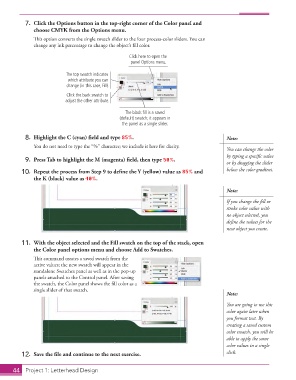
7.  Click the Options button in the top-right corner of the Color panel and
                   choose CMYK from the Options menu.
                   This option converts the single swatch slider to the four process-color sliders. You can
                   change any ink percentage to change the object’s fill color.

                                                        Click here to open the
                                                        panel Options menu.
                                The top swatch indicates
                                which attribute you can
                                change (in this case, Fill).
                                Click the back swatch to
                               adjust the other attribute.

                                                      The black fill is a saved
                                                    (default) swatch; it appears in
                                                     the panel as a single slider.

                8.  Highlight the C (cyan) field and type 85%.                               Note:

                   You do not need to type the “%” character; we include it here for clarity.
                                                                                             You can change the color
                                                                                             by typing a specific value
                9.  Press Tab to highlight the M (magenta) field, then type 50%.
                                                                                             or by dragging the slider
               10.  Repeat the process from Step 9 to define the Y (yellow) value as 85% and   below the color gradient.
                   the K (black) value as 40%.

                                                                                             Note:

                                                                                             If you change the fill or
                                                                                             stroke color value with
                                                                                             no object selected, you
                                                                                             define the values for the
                                                                                             next object you create.

               11.  With the object selected and the Fill swatch on the top of the stack, open
                   the Color panel options menu and choose Add to Swatches.
                   This command creates a saved swatch from the
                   active values; the new swatch will appear in the
                   standalone Swatches panel as well as in the pop-up
                   panels attached to the Control panel. After saving
                   the swatch, the Color panel shows the fill color as a
                   single slider of that swatch.
                                                                                             Note:
                                                                                             You are going to use this
                                                                                             color again later when
                                                                                             you format text. By
                                                                                             creating a saved custom
                                                                                             color swatch, you will be
                                                                                             able to apply the same
                                                                                             color values in a single
               12.  Save the file and continue to the next exercise.                         click.


           44   Project 1: Letterhead Design

