


Page 33 - CC 2019 ID Look Inside
P. 33
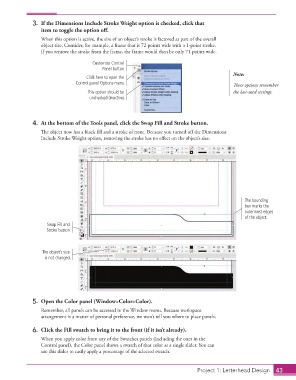
3.  If the Dimensions Include Stroke Weight option is checked, click that
                      item to toggle the option off.
                      When this option is active, the size of an object’s stroke is factored as part of the overall
                      object size. Consider, for example, a frame that is 72 points wide with a 1-point stroke.
                      If you remove the stroke from the frame, the frame would then be only 71 points wide.

                                          Customize Control
                                              Panel button
                                                                                                Note:
                                       Click here to open the
                                   Control panel Options menu.                                  These options remember

                                        This option should be                                   the last-used settings.
                                         unchecked (inactive).


                   4.  At the bottom of the Tools panel, click the Swap Fill and Stroke button.
                      The object now has a black fill and a stroke of none. Because you turned off the Dimensions
                      Include Stroke Weight option, removing the stroke has no effect on the object’s size.


                                                                                                    The bounding
                                                                                                    box marks the
                                                                                                    outermost edges
                                                                                                    of the object.
                        Swap Fill and
                        Stroke button


                       The object’s size
                        is not changed.


                   5.  Open the Color panel (Window>Color>Color).

                      Remember, all panels can be accessed in the Window menu. Because workspace
                      arrangement is a matter of personal preference, we won’t tell you where to place panels.

                   6.  Click the Fill swatch to bring it to the front (if it isn’t already).
                      When you apply color from any of the Swatches panels (including the ones in the
                      Control panel), the Color panel shows a swatch of that color as a single slider. You can
                      use this slider to easily apply a percentage of the selected swatch.


                                                                                  Project 1: Letterhead Design  43

