


Page 28 - CC 2019 ID Look Inside
P. 28
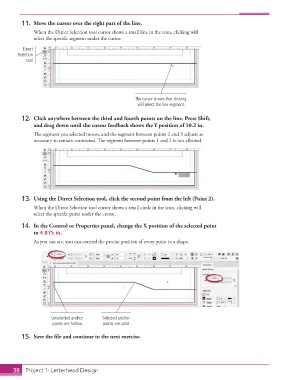
11.  Move the cursor over the right part of the line.
                   When the Direct Selection tool cursor shows a small line in the icon, clicking will
                   select the specifi c segment under the cursor.
               Direct
             Selection
                tool


                                                          The cursor shows that clicking
                                                           will select the line segment.

               12.  Click anywhere between the third and fourth points on the line. Press Shift,
                   and drag down until the  cursor feedback shows the Y position of 10.2 in.

                   Th  e segment you selected moves, and the segment between points 2 and 3 adjusts as
                   necessary to remain connected. Th  e segment between points 1 and 2 is not aff ected.


               13.  Using the Direct Selection tool, click the second point from the left (Point 2).
                   When the Direct Selection tool cursor shows a small circle in the icon, clicking will
                   select the specifi c point under the cursor.
               14.  In the  Control or  Properties panel, change the X position of the selected point
                   to 4.875 in.
                   As you can see, you can control the precise position of every point in a shape.


                          Unselected anchor   Selected anchor
                           points are hollow.  points are solid.

               15.  Save the fi le and continue to the next exercise.


           38     Project 1: Letterhead Design

