


Page 27 - CC 2019 ID Look Inside
P. 27
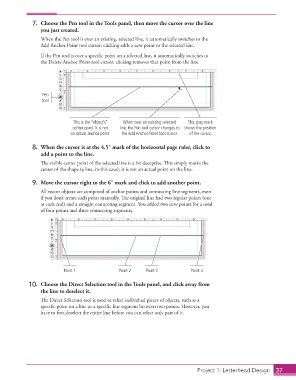
7.  Choose the Pen tool in the Tools panel, then move the cursor over the line
                      you just created.
                      When the Pen tool is over an existing, selected line, it automatically switches to the
                      Add Anchor Point tool cursor; clicking adds a new point to the selected line.

                      If the Pen tool is over a specific point on a selected line, it automatically switches to
                      the Delete Anchor Point tool cursor; clicking removes that point from the line.


                       Pen
                      tool


                                  This is the “object’s”   When over an existing selected   This gray mark
                                  center point. It is not   line, the Pen tool cursor changes to  shows the position
                                 an actual anchor point.  the Add Anchor Point tool cursor.  of the cursor.


                   8.  When the cursor is at the 4.5″ mark of the horizontal page ruler, click to
                      add a point to the line.

                      The visible center point of the selected line is a bit deceptive. This simply marks the
                      center of the shape (a line, in this case); it is not an actual point on the line.

                   9.  Move the cursor right to the 6″ mark and click to add another point.
                      All vector objects are composed of anchor points and connecting line segments, even
                      if you don’t create each point manually. The original line had two regular points (one
                      at each end) and a straight connecting segment. You added two new points for a total
                      of four points and three connecting segments.


                               Point 1              Point 2   Point 3          Point 4

                  10.  Choose the Direct Selection tool in the Tools panel, and click away from
                      the line to deselect it.
                      The Direct Selection tool is used to select individual pieces of objects, such as a
                      specific point on a line or a specific line segment between two points. However, you
                      have to first deselect the entire line before you can select only part of it.


                                                                                  Project 1: Letterhead Design  37

