


Page 48 - CC2018_ID_Look_Inside
P. 48
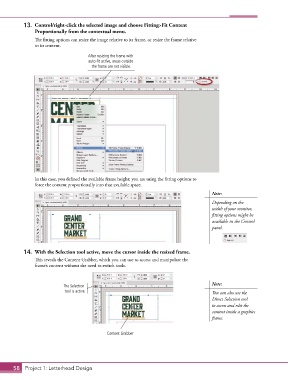
13.  Control/right-click the selected image and choose Fitting>Fit Content
               Proportionally from the contextual menu.

               The fitting options can resize the image relative to its frame, or resize the frame relative
               to its content.

                                     After resizing the frame with
                                     auto-fit active, areas outside
                                       the frame are not visible.


               In this case, you defined the available frame height; you are using the fitting options to
               force the content proportionally into that available space.
                                                                                        Note:
                                                                                        Depending on the
                                                                                        width of your monitor,
                                                                                        fitting options might be
                                                                                        available in the Control
                                                                                        panel.


           14.  With the Selection tool active, move the cursor inside the resized frame.
               This reveals the Content Grabber, which you can use to access and manipulate the
               frame’s content without the need to switch tools.


                                                                                        Note:
                           The Selection
                            tool is active.                                             You can also use the
                                                                                        Direct Selection tool
                                                                                        to access and edit the
                                                                                        content inside a graphics
                                                                                        frame.


                                             Content Grabber


       58 Project 1: Letterhead Design

