


Page 30 - CC2018_ID_Look_Inside
P. 30
Understanding Anchor Points and Handles
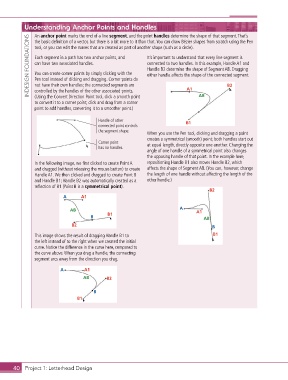
               An anchor point marks the end of a line segment, and the point handles determine the shape of that segment. That’s
             INDESIGN FOUNDATIONS  tool, or you can edit the curves that are created as part of another shape (such as a circle).
               the basic definition of a vector, but there is a bit more to it than that. You can draw Bézier shapes from scratch using the Pen


               Each segment in a path has two anchor points, and
                                                              It’s important to understand that every line segment is
                                                              connected to two handles. In this example, Handle A1 and
               can have two associated handles.
                                                              Handle B2 determine the shape of Segment AB. Dragging
               You can create corner points by simply clicking with the
                                                              either handle affects the shape of the connected segment.
               Pen tool instead of clicking and dragging. Corner points do
               not have their own handles; the connected segments are
               controlled by the handles of the other associated points.
               (Using the Convert Direction Point tool, click a smooth point
               to convert it to a corner point; click and drag from a corner   A1  AB          B2
               point to add handles, converting it to a smoother point.)

                                          Handle of other                     B1
                                          connected point controls
                                          the segment shape.
                                                              When you use the Pen tool, clicking and dragging a point
                                                              creates a symmetrical (smooth) point; both handles start out
                                          Corner point        at equal length, directly opposite one another. Changing the
                                          has no handles.
                                                              angle of one handle of a symmetrical point also changes
                                                              the opposing handle of that point. In the example here,
               In the following image, we first clicked to create Point A   repositioning Handle B1 also moves Handle B2, which
               and dragged (without releasing the mouse button) to create   affects the shape of Segment AB. (You can, however, change
               Handle A1. We then clicked and dragged to create Point B   the length of one handle without affecting the length of the
               and Handle B1; Handle B2 was automatically created as a   other handle.)
               reflection of B1 (Point B is a symmetrical point).
                                                                                       B2
                           A       A1

                              AB                                           A      A1
                                      B      B1                                      AB
                               B2                                                        B

               This image shows the result of dragging Handle B1 to                      B1
               the left instead of to the right when we created the initial
               curve. Notice the difference in the curve here, compared to
               the curve above. When you drag a handle, the connecting
               segment arcs away from the direction you drag.

                          A         A1
                                   AB        B2

                                        B
                                 B1


       40 Project 1: Letterhead Design

