


Page 17 - CC2018_ID_Look_Inside
P. 17
12.  Choose Inches in the Units menu.
                   By default, InDesign uses picas as the unit of measurement for print documents; mea-
                   surements in this dialog box are shown in picas and points, using the “ApB” notation
                   (for A picas and B points). Colors in a print-intent document default to the CMYK
                   color model (see Page 41 in this project).                               Note:

                   If you choose Web or Digital Publishing, InDesign changes the default unit of   Picas are the measuring
                   measurement to pixels, which is more appropriate for web design. Colors in a web-  units traditionally
                   intent document default to the RGB color model.                          used in typography;
                                                                                            they are still used by
                   Regardless of which unit of measurement you choose when you create a new file,   many people in the
                   you can change the setting for a specific file in the Units and Increments pane of the   graphic communications
                   Preferences dialog box. InDesign supports all modern units of measurement, including   industry.
                   points, picas, inches, millimeters, centimeters, and pixels (as well as a few others from
                   historic typography).                                                    1 point = 1/72 inch

                   You can also type different measurement units, such as “2cm”, in a dialog box or panel   12 points = 1 pica
                   field. As long as you include the unit in your entry, the software accurately translates the   1 pica = 1/6 inch
                   value you type into the default unit for the active file.
                                                                                            6 picas = 1 inch
               13.  Expand the Margins section of the preset details.

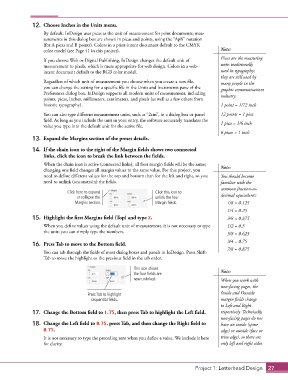
               14.  If the chain icon to the right of the Margin fields shows two connected
                   links, click the icon to break the link between the fields.

                   When the chain icon is active (connected links), all four margin fields will be the same;
                   changing one field changes all margin values to the same value. For this project, you   Note:
                   need to define different values for the top and bottom than for the left and right, so you   You should become
                   need to unlink (unconstrain) the fields.                                 familiar with the
                                                                                            common fraction-to-
                             Click here to expand                Click this icon to
                                 or collapse the                 unlink the four            decimal equivalents:
                                Margins section.                 Margin fields.                1/8 = 0.125
                                                                                               1/4 = 0.25
               15.  Highlight the first Margins field (Top) and type 2.                        3/8 = 0.375
                   When you define values using the default unit of measurement, it is not necessary to type   1/2 = 0.5
                   the unit; you can simply type the numbers.                                  5/8 = 0.625
                                                                                               3/4 = 0.75
               16.  Press Tab to move to the Bottom field.
                                                                                               7/8 = 0.875
                   You can tab through the fields of most dialog boxes and panels in InDesign. Press Shift-
                   Tab to move the highlight to the previous field in the tab order.
                                                        This icon shows                     Note:
                                                        the four fields are
                                                        now unlinked.                       When you work with
                                                                                            non-facing pages, the
                                     Press Tab to highlight                                 Inside and Outside
                                       sequential fields.                                   margin fields change
                                                                                            to Left and Right
               17.  Change the Bottom field to 1.75, then press Tab to highlight the Left field.  respectively. Technically,
                                                                                            non-facing pages do not
               18.  Change the Left field to 0.75, press Tab, and then change the Right field to   have an inside (spine
                   0.75.                                                                    edge) or outside (face or
                   It is not necessary to type the preceding zero when you define a value. We include it here   trim edge), so there are
                   for clarity.                                                             only left and right sides.


                                                                                  Project 1: Letterhead Design  27

