


Page 16 - CC2018_ID_Look_Inside
P. 16
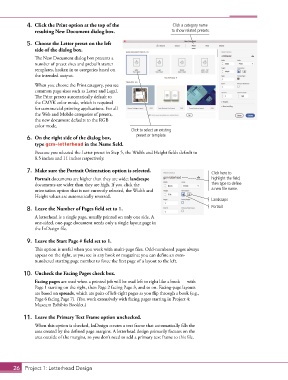
4.  Click the Print option at the top of the                Click a category name
               resulting New Document dialog box.                       to show related presets.

            5.  Choose the Letter preset on the left
               side of the dialog box.
               The New Document dialog box presents a
               number of preset sizes and prebuilt starter
               templates, broken in to categories based on
               the intended output.
               When you choose the Print category, you see
               common page sizes such as Letter and Legal.
               The Print presets automatically default to
               the CMYK color mode, which is required
               for commercial printing applications. For all
               the Web and Mobile categories of presets,
               the new document defaults to the RGB
               color mode.
                                                       Click to select an existing
            6.  On the right side of the dialog box,     preset or template.
               type gcm-letterhead in the Name field.
               Because you selected the Letter preset in Step 5, the Width and Height fields default to
               8.5 inches and 11 inches respectively.

            7.  Make sure the Portrait Orientation option is selected.                  Click here to
               Portrait documents are higher than they are wide; landscape              highlight the field,
               documents are wider than they are high. If you click the                 then type to define
               orientation option that is not currently selected, the Width and         a new file name.
               Height values are automatically reversed.
                                                                                        Landscape
            8.  Leave the Number of Pages field set to 1.                               Portrait
               A letterhead is a single page, usually printed on only one side. A
               one-sided, one-page document needs only a single layout page in
               the InDesign file.

            9.  Leave the Start Page # field set to 1.
               This option is useful when you work with multi-page files. Odd-numbered pages always
               appear on the right, as you see in any book or magazine; you can define an even-
               numbered starting page number to force the first page of a layout to the left.


           10.  Uncheck the Facing Pages check box.
               Facing pages are used when a printed job will be read left to right like a book — with
               Page 1 starting on the right, then Page 2 facing Page 3, and so on. Facing-page layouts
               are based on spreads, which are pairs of left-right pages as you flip through a book (e.g.,
               Page 6 facing Page 7). (You work extensively with facing pages starting in Project 4:
               Museum Exhibits Booklet.)

           11.  Leave the Primary Text Frame option unchecked.
               When this option is checked, InDesign creates a text frame that automatically fills the
               area created by the defined page margins. A letterhead design primarily focuses on the
               area outside of the margins, so you don’t need to add a primary text frame to this file.


       26 Project 1: Letterhead Design

