


Page 19 - CC2017_ID_Look_Inside
P. 19
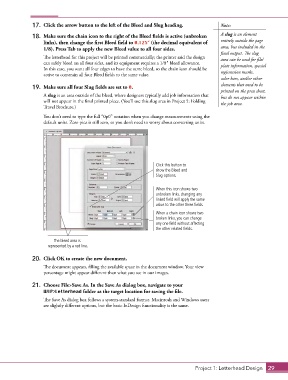
17.  Click the arrow button to the left of the Bleed and Slug heading.       Note:
               18.  Make sure the chain icon to the right of the Bleed fields is active (unbroken   A slug is an element
                   links), then change the first Bleed field to 0.125” (the decimal equivalent of   entirely outside the page
                   1/8). Press Tab to apply the new Bleed value to all four sides.          area, but included in the
                                                                                            final output. The slug
                   The letterhead for this project will be printed commercially; the printer said the design   area can be used for file/
                   can safely bleed on all four sides, and its equipment requires a 1/8″ bleed allowance.    plate information, special
                   In this case, you want all four edges to have the same bleed, so the chain icon should be   registration marks,
                   active to constrain all four Bleed fields to the same value.
                                                                                            color bars, and/or other
                                                                                            elements that need to be
               19.  Make sure all four Slug fields are set to 0.
                                                                                            printed on the press sheet,
                   A slug is an area outside of the bleed, where designers typically add job information that   but do not appear within
                   will not appear in the final printed piece. (You’ll use this slug area in Project 5: Folding   the job area.
                   Travel Brochure.)
                   You don’t need to type the full “0p0” notation when you change measurements using the
                   default units. Zero pica is still zero, so you don’t need to worry about converting units.


                                                                 Click this button to
                                                                 show the Bleed and
                                                                 Slug options.


                                                                 When this icon shows two
                                                                 unbroken links, changing any
                                                                 linked field will apply the same
                                                                 value to the other three fields.
                                                                 When a chain icon shows two
                                                                 broken links, you can change
                                                                 any one field without affecting
                                                                 the other related fields.

                       The bleed area is
                     represented by a red line.

               20.  Click OK to create the new document.
                   The document appears, filling the available space in the document window. Your view
                   percentage might appear different than what you see in our images.


               21.  Choose File>Save As. In the Save As dialog box, navigate to your
                   WIP>Letterhead folder as the target location for saving the file.
                   The Save As dialog box follows a system-standard format. Macintosh and Windows users
                   see slightly different options, but the basic InDesign functionality is the same.


                                                                                  Project 1: Letterhead Design  29

