


Page 52 - CC2018_AI_Look_Inside
P. 52
draW WIth lIvE shapEs
          As you saw in the previous exercise, Illustrator recognizes a number of basic shapes
          as Live Shapes. In addition to using the Transform panel to edit the properties of
          Live Shapes, you can also use the tool cursor to edit those shapes without the need to
          constantly switch tools. In this exercise, you will create and edit two more live shapes
          to complete the Hiking icon artwork.

            1.  With icons.ai open, deselect everything on the artboard.
                                                                                        Note:
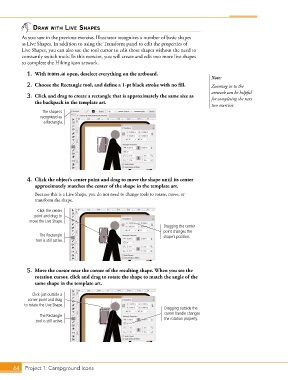
            2.  Choose the Rectangle tool, and define a 1-pt black stroke with no fill.  Zooming in to the
                                                                                        artwork can be helpful
            3.  Click and drag to create a rectangle that is approximately the same size as   for completing the next
               the backpack in the template art.
                                                                                        two exercises.
                   The shape is
                  recognized as
                   a Rectangle.


            4.  Click the object’s center point and drag to move the shape until its center
               approximately matches the center of the shape in the template art.
               Because this is a Live Shape, you do not need to change tools to rotate, move, or
               transform the shape.

                Click the center
               point and drag to
             move the Live Shape.
                                                                     Dragging the center
                                                                     point changes the
                 The Rectangle                                       shape’s position.
                tool is still active.


            5.  Move the cursor near the corner of the resulting shape. When you see the
               rotation cursor, click and drag to rotate the shape to match the angle of the
               same shape in the template art.

              Click just outside a
            corner point and drag
           to rotate the Live Shape.
                                                                     Dragging outside the
                                                                     corner handle changes
                 The Rectangle
                tool is still active.                                the rotation property.


       64 Project 1: Campground Icons

