


Page 53 - CC2018_AI_Look_Inside
P. 53
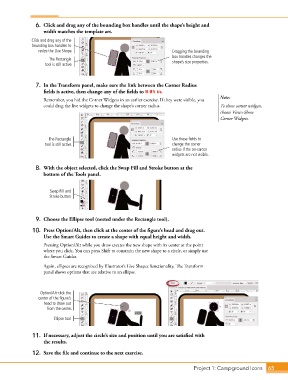
6.  Click and drag any of the bounding box handles until the shape’s height and
                   width matches the template art.

              Click and drag any of the
              bounding box handles to
                 resize the Live Shape.                                 Dragging the bounding
                                                                        box handles changes the
                     The Rectangle
                    tool is still active.                               shape’s size properties.


                7.  In the Transform panel, make sure the link between the Corner Radius
                   fields is active, then change any of the fields to 0.05 in.
                                                                                            Note:
                   Remember, you hid the Corner Widgets in an earlier exercise. If they were visible, you
                   could drag the live widgets to change the shape’s corner radius.         To show corner widgets,
                                                                                            choose View>Show
                                                                                            Corner Widgets.


                     The Rectangle                                      Use these fields to
                    tool is still active.                               change the corner
                                                                        radius if the on-screen
                                                                        widgets are not visible.

                8.  With the object selected, click the Swap Fill and Stroke button at the
                   bottom of the Tools panel.


                      Swap Fill and
                     Stroke button


                9.  Choose the Ellipse tool (nested under the Rectangle tool).
               10.  Press Option/Alt, then click at the center of the figure’s head and drag out.
                   Use the Smart Guides to create a shape with equal height and width.
                   Pressing Option/Alt while you draw creates the new shape with its center at the point
                   where you click. You can press Shift to constrain the new shape to a circle, or simply use
                   the Smart Guides.

                   Again, ellipses are recognized by Illustrator’s Live Shapes functionality. The Transform
                   panel shows options that are relative to an ellipse.


                  Option/Alt-click the
                 center of the figure’s
                   head to draw out
                    from the center.
                       Ellipse tool


               11.  If necessary, adjust the circle’s size and position until you are satisfied with
                   the results.

               12.  Save the file and continue to the next exercise.


                                                                                 Project 1: Campground Icons    65

