


Page 63 - CC2018_WD_Look_Inside
P. 63
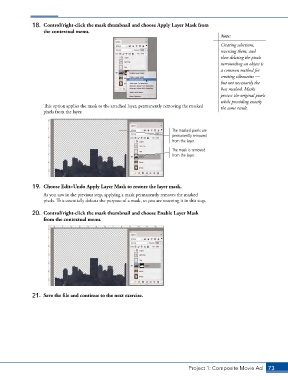
18.  Control/right-click the mask thumbnail and choose Apply Layer Mask from
                   the contextual menu.
                                                                                            Note:

                                                                                            Creating selections,
                                                                                            reversing them, and
                                                                                            then deleting the pixels
                                                                                            surrounding an object is
                                                                                            a common method for
                                                                                            creating silhouettes —
                                                                                            but not necessarily the
                                                                                            best method. Masks
                                                                                            protect the original pixels
                                                                                            while providing exactly
                   This option applies the mask to the attached layer, permanently removing the masked   the same result.
                   pixels from the layer.


                                                                        The masked pixels are
                                                                        permanently removed
                                                                        from the layer.
                                                                        The mask is removed
                                                                        from the layer.


               19.  Choose Edit>Undo Apply Layer Mask to restore the layer mask.
                   As you saw in the previous step, applying a mask permanently removes the masked
                   pixels. This essentially defeats the purpose of a mask, so you are restoring it in this step.

               20.  Control/right-click the mask thumbnail and choose Enable Layer Mask
                   from the contextual menu.


               21.  Save the file and continue to the next exercise.


                                                                               Project 1: Composite Movie Ad    73

