


Page 68 - CC2018_WD_Look_Inside
P. 68
mAke And refine A QuiCk seleCtion
          As you just saw, you can make selections based on the color in an image. This tech-
          nique is useful when you want to select large areas of solid color, or in photos with sig-
          nificant contrast between the foreground and background. When the area you want to
          select has a complex edge, refining the selection edge can produce very detailed results.
            1.  With aftermath.psd open, hide all but the Bricks layer. Click the Bricks
               layer to select it as the active layer.

            2.  Choose the Quick Selection tool (nested under the Magic Wand tool).

            3.  In the Options bar, make sure the Sample All Layers option is not checked.
               You only want to select the area in the bricks layer (the hole in the wall), so you do not
               want to make a selection based on the content of other layers in the file.
                                                                                        Note:
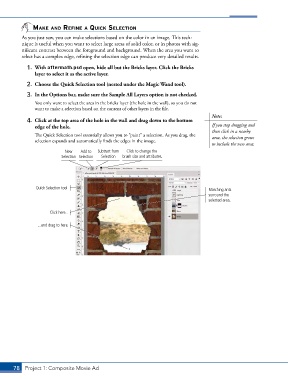
            4.  Click at the top area of the hole in the wall and drag down to the bottom
               edge of the hole.                                                        If you stop dragging and
                                                                                        then click in a nearby
               The Quick Selection tool essentially allows you to “paint” a selection. As you drag, the   area, the selection grows
               selection expands and automatically finds the edges in the image.
                                                                                        to include the new area.
                            New   Add to  Subtract from   Click to change the
                          Selection Selection  Selection  brush size and attributes.


                Quick Selection tool                                                   Marching ants
                                                                                       surround the
                                                                                       selected area.

                      Click here...

                 ...and drag to here.


       78 Project 1: Composite Movie Ad

