


Page 62 - CC2018_WD_Look_Inside
P. 62
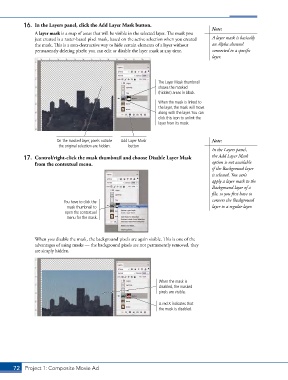
16.  In the Layers panel, click the Add Layer Mask button.                   Note:
               A layer mask is a map of areas that will be visible in the selected layer. The mask you
               just created is a raster-based pixel mask, based on the active selection when you created   A layer mask is basically
               the mask. This is a non-destructive way to hide certain elements of a layer without   an Alpha channel
               permanently deleting pixels; you can edit or disable the layer mask at any time.  connected to a specific
                                                                                        layer.


                                                                  The Layer Mask thumbnail
                                                                  shows the masked
                                                                  (hidden) areas in black.

                                                                  When the mask is linked to
                                                                  the layer, the mask will move
                                                                  along with the layer. You can
                                                                  click this icon to unlink the
                                                                  layer from its mask.


                        On the masked layer, pixels outside   Add Layer Mask            Note:
                         the original selection are hidden.  button
                                                                                        In the Layers panel,
           17.  Control/right-click the mask thumbnail and choose Disable Layer Mask    the Add Layer Mask
               from the contextual menu.                                                option is not available
                                                                                        if the Background layer
                                                                                        is selected. You can’t
                                                                                        apply a layer mask to the
                                                                                        Background layer of a
                                                                                        file, so you first have to
                           You have to click the                                        convert the Background
                             mask thumbnail to                                          layer to a regular layer.
                            open the contextual
                             menu for the mask.


               When you disable the mask, the background pixels are again visible. This is one of the
               advantages of using masks — the background pixels are not permanently removed, they
               are simply hidden.


                                                                   When the mask is
                                                                   disabled, the masked
                                                                   pixels are visible.


                                                                   A red X indicates that
                                                                   the mask is disabled.


       72 Project 1: Composite Movie Ad

