


Page 17 - CC2018_WD_Look_Inside
P. 17
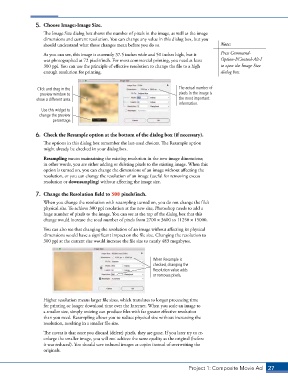
5.  Choose Image>Image Size.
                   The Image Size dialog box shows the number of pixels in the image, as well as the image
                   dimensions and current resolution. You can change any value in this dialog box, but you
                   should understand what those changes mean before you do so.              Note:
                   As you can see, this image is currently 37.5 inches wide and 50 inches high, but it   Press Command-
                   was photographed at 72 pixels/inch. For most commercial printing, you need at least   Option-I/Control-Alt-I
                   300 ppi. You can use the principle of effective resolution to change the file to a high   to open the Image Size
                   enough resolution for printing.                                          dialog box.


                Click and drag in the                                      The actual number of
                 preview window to                                         pixels in the image is
                show a different area.                                     the most important
                                                                           information.
                  Use this widget to
                 change the preview
                       percentage.


                6.  Check the Resample option at the bottom of the dialog box (if necessary).
                   The options in this dialog box remember the last-used choices. The Resample option
                   might already be checked in your dialog box.
                   Resampling means maintaining the existing resolution in the new image dimensions;
                   in other words, you are either adding or deleting pixels to the existing image. When this
                   option is turned on, you can change the dimensions of an image without affecting the
                   resolution, or you can change the resolution of an image (useful for removing excess
                   resolution or downsampling) without affecting the image size.

                7.  Change the Resolution field to 300 pixels/inch.
                   When you change the resolution with resampling turned on, you do not change the file’s
                   physical size. To achieve 300 ppi resolution at the new size, Photoshop needs to add a
                   huge number of pixels to the image. You can see at the top of the dialog box that this
                   change would increase the total number of pixels from 2700 1 3600 to 11250 1 15000.
                   You can also see that changing the resolution of an image without affecting its physical
                   dimensions would have a significant impact on the file size. Changing the resolution to
                   300 ppi at the current size would increase the file size to nearly 483 megabytes.


                                                                When Resample is
                                                                checked, changing the
                                                                Resolution value adds
                                                                or removes pixels.


                   Higher resolution means larger file sizes, which translates to longer processing time
                   for printing or longer download time over the Internet. When you scale an image to
                   a smaller size, simply resizing can produce files with far greater effective resolution
                   than you need. Resampling allows you to reduce physical size without increasing the
                   resolution, resulting in a smaller file size.

                   The caveat is that once you discard (delete) pixels, they are gone. If you later try to re-
                   enlarge the smaller image, you will not achieve the same quality as the original (before
                   it was reduced). You should save reduced images as copies instead of overwriting the
                   originals.


                                                                               Project 1: Composite Movie Ad    27

