


Page 16 - CC2018_WD_Look_Inside
P. 16
If a 300-ppi image is magnified 150%, the effective resolution is:

                  300 ppi ÷ 1.5 = 200 ppi

              In other words, the more you enlarge a raster image, the lower its effective
          resolution becomes. In general, you can make an image 10% or 15% larger without
          significant adverse effects; the more you enlarge an image, however, the worse the
          results. Even Photoshop, which offers very sophisticated formulas (called “algorithms”)
          for sizing images, cannot guarantee perfect results.
              Effective resolution can be a very important consideration when working with
          client-supplied images, especially those that come from consumer-level digital cameras.
          Many of those devices capture images with a specific number of pixels rather than
          a number of pixels per inch (ppi). In this exercise, you will explore the effective
          resolution of an image to see if it can be used for a full-page printed magazine ad.

            1.  Download Movie_Web18_RF.zip from the Student Files web page.

            2.  Expand the ZIP archive in your WIP folder (Macintosh) or copy the archive
               contents into your WIP folder (Windows).
               This results in a folder named Movie, which contains all of the files you need for this
               project. You should also use this folder to save the files you create in this project.

               If necessary, refer to Page 1 of the Interface chapter for specific information on
               expanding or accessing the required resource files.

            3.  In Photoshop, choose File>Open and navigate to your WIP>Movie folder.
               Select Bricks.jpg and click Open.
                                                                                        Note:
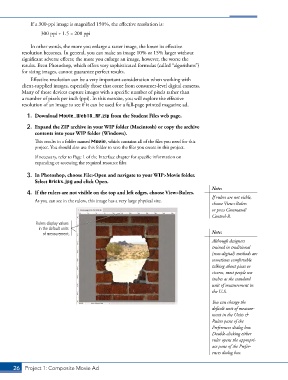
            4.  If the rulers are not visible on the top and left edges, choose View>Rulers.
                                                                                        If rulers are not visble,
               As you can see in the rulers, this image has a very large physical size.
                                                                                        choose View>Rulers
                                                                                        or press Command/
                                                                                        Control-R.
                Rulers display values
                 in the default units
                   of measurement.                                                      Note:
                                                                                        Although designers
                                                                                        trained in traditional
                                                                                        (non-digital) methods are
                                                                                        sometimes comfortable
                                                                                        talking about picas or
                                                                                        ciceros, most people use
                                                                                        inches as the standard
                                                                                        unit of measurement in
                                                                                        the U.S.

                                                                                        You can change the
                                                                                        default unit of measure-
                                                                                        ment in the Units &
                                                                                        Rulers pane of the
                                                                                        Preferences dialog box.
                                                                                        Double-clicking either
                                                                                        ruler opens the appropri-
                                                                                        ate pane of the Prefer-
                                                                                        ences dialog box.


       26 Project 1: Composite Movie Ad

