


Page 39 - CC2017_WD_Look_Inside
P. 39
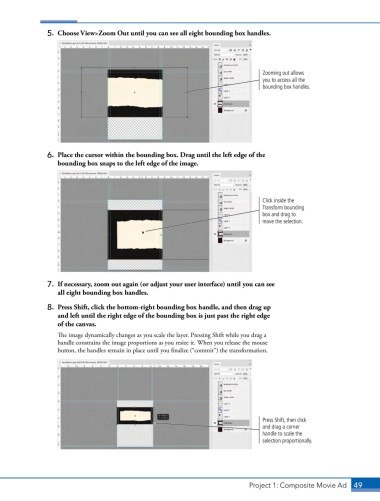
5.  Choose View>Zoom Out until you can see all eight bounding box handles.


                                                                                   Zooming out allows
                                                                                   you to access all the
                                                                                   bounding box handles.


                6.  Place the cursor within the bounding box. Drag until the left edge of the
                   bounding box snaps to the left edge of the image.


                                                                                   Click inside the
                                                                                   Transform bounding
                                                                                   box and drag to
                                                                                   move the selection.


                7.  If necessary, zoom out again (or adjust your user interface) until you can see
                   all eight bounding box handles.

                8.  Press Shift, click the bottom-right bounding box handle, and then drag up
                   and left until the right edge of the bounding box is just past the right edge
                   of the canvas.

                   The image dynamically changes as you scale the layer. Pressing Shift while you drag a
                   handle constrains the image proportions as you resize it. When you release the mouse
                   button, the handles remain in place until you finalize (“commit”) the transformation.


                                                                                   Press Shift, then click
                                                                                   and drag a corner
                                                                                   handle to scale the
                                                                                   selection proportionally.


                                                                               Project 1: Composite Movie Ad    49

