


Page 35 - CC2017_WD_Look_Inside
P. 35
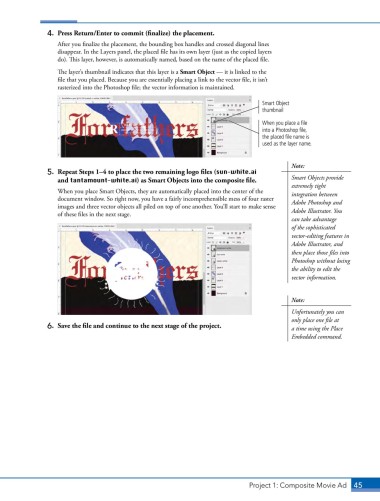
4.  Press Return/Enter to commit (finalize) the placement.
                   After you finalize the placement, the bounding box handles and crossed diagonal lines
                   disappear. In the Layers panel, the placed file has its own layer (just as the copied layers
                   do). This layer, however, is automatically named, based on the name of the placed file.
                   The layer’s thumbnail indicates that this layer is a Smart Object — it is linked to the
                   file that you placed. Because you are essentially placing a link to the vector file, it isn’t
                   rasterized into the Photoshop file; the vector information is maintained.


                                                                                   Smart Object
                                                                                   thumbnail
                                                                                   When you place a file
                                                                                   into a Photoshop file,
                                                                                   the placed file name is
                                                                                   used as the layer name.


                                                                                            Note:
                5.  Repeat Steps 1–4 to place the two remaining logo files (sun-white.ai    Smart Objects provide
                   and tantamount-white.ai) as Smart Objects into the composite file.
                                                                                            extremely tight
                   When you place Smart Objects, they are automatically placed into the center of the   integration between
                   document window. So right now, you have a fairly incomprehensible mess of four raster   Adobe Photoshop and
                   images and three vector objects all piled on top of one another. You’ll start to make sense   Adobe Illustrator. You
                   of these files in the next stage.
                                                                                            can take advantage
                                                                                            of the sophisticated
                                                                                            vector-editing features in
                                                                                            Adobe Illustrator, and
                                                                                            then place those files into
                                                                                            Photoshop without losing
                                                                                            the ability to edit the
                                                                                            vector information.


                                                                                            Note:
                                                                                            Unfortunately you can
                                                                                            only place one file at
                6.  Save the file and continue to the next stage of the project.            a time using the Place
                                                                                            Embedded command.


                                                                               Project 1: Composite Movie Ad    45

