


Page 32 - CS6_PS_Look_Inside
P. 32
drAg A file to coMposite iMAges
               Compositing multiple images in Photoshop is a fairly simple process — or at least, it
               starts out that way. There are, of course, a number of technical and aesthetic issues that
               you must resolve when you combine multiple images in a single design.         Note:
                                                                                             When you created the
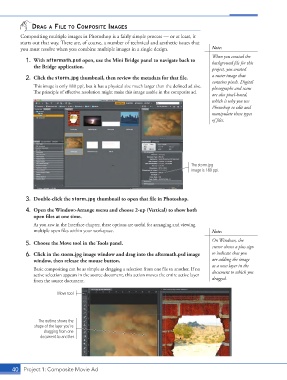
                 1.  With aftermath.psd open, use the Mini Bridge panel to navigate back to   background file for this
                    the Bridge application.                                                  project, you created
                 2.  Click the storm.jpg thumbnail, then review the metadata for that file.   a raster image that
                                                                                             contains pixels. Digital
                    This image is only 180 ppi, but it has a physical size much larger than the defined ad size.   photographs and scans
                    The principle of effective resolution might make this image usable in the composite ad.
                                                                                             are also pixel-based,
                                                                                             which is why you use
                                                                                             Photoshop to edit and
                                                                                             manipulate those types
                                                                                             of files.


                                                                                     The storm.jpg
                                                                                     image is 180 ppi.


                 3.  Double-click the storm.jpg thumbnail to open that file in Photoshop.

                 4.  Open the Window>Arrange menu and choose 2-up (Vertical) to show both
                    open files at one time.
                    As you saw in the Interface chapter, these options are useful for arranging and viewing
                    multiple open files within your workspace.                               Note:
                                                                                             On Windows, the
                 5.  Choose the Move tool in the Tools panel.
                                                                                             cursor shows a plus sign
                 6.  Click in the storm.jpg image window and drag into the aftermath.psd image   to indicate that you
                    window, then release the mouse button.                                   are adding the image
                                                                                             as a new layer in the
                    Basic compositing can be as simple as dragging a selection from one file to another. If no   document to which you
                    active selection appears in the source document, this action moves the entire active layer
                    from the source document.                                                dragged.


                              Move tool


                      The outline shows the
                    shape of the layer you’re
                        dragging from one
                       document to another.


           40 Project 1: Composite Movie Ad

